Skip accessibility options6. Draft System
-
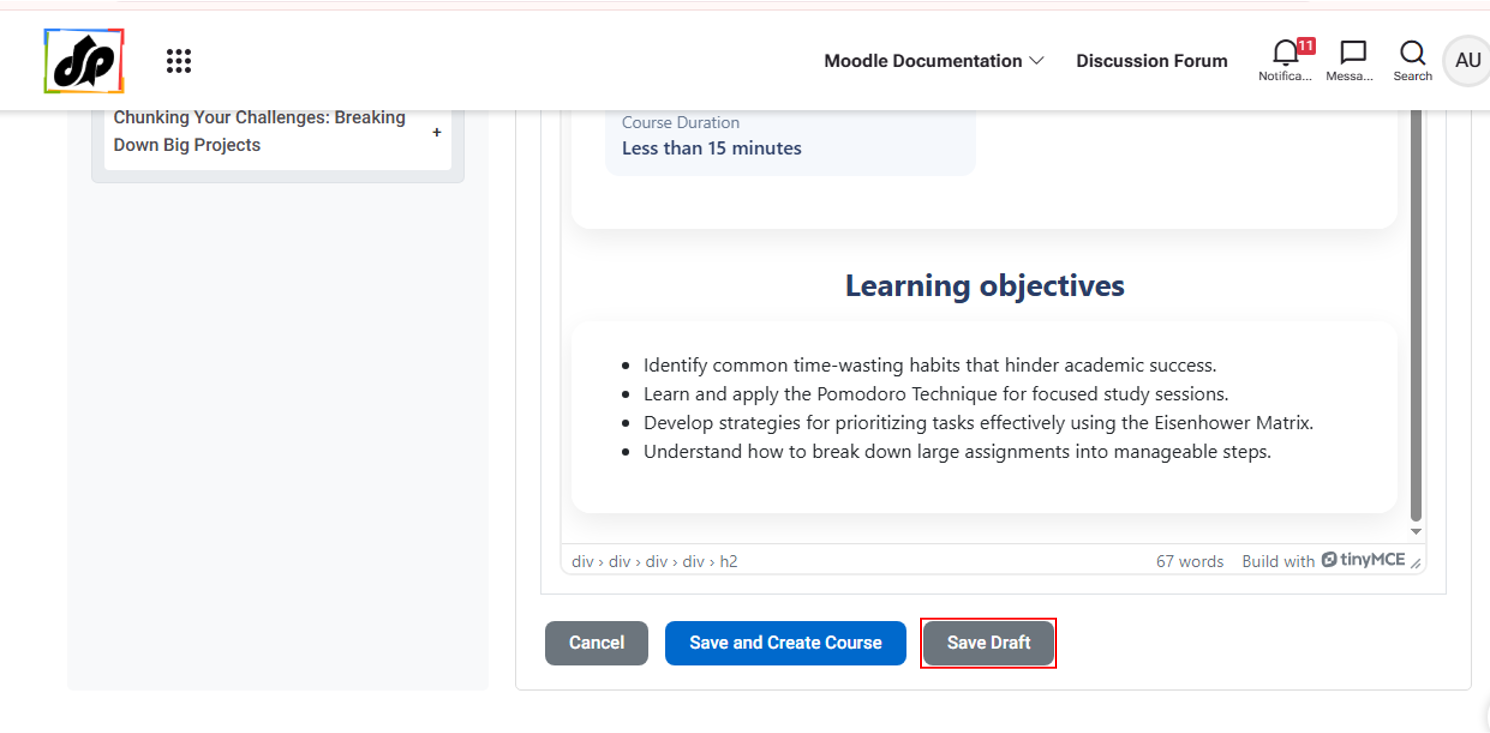
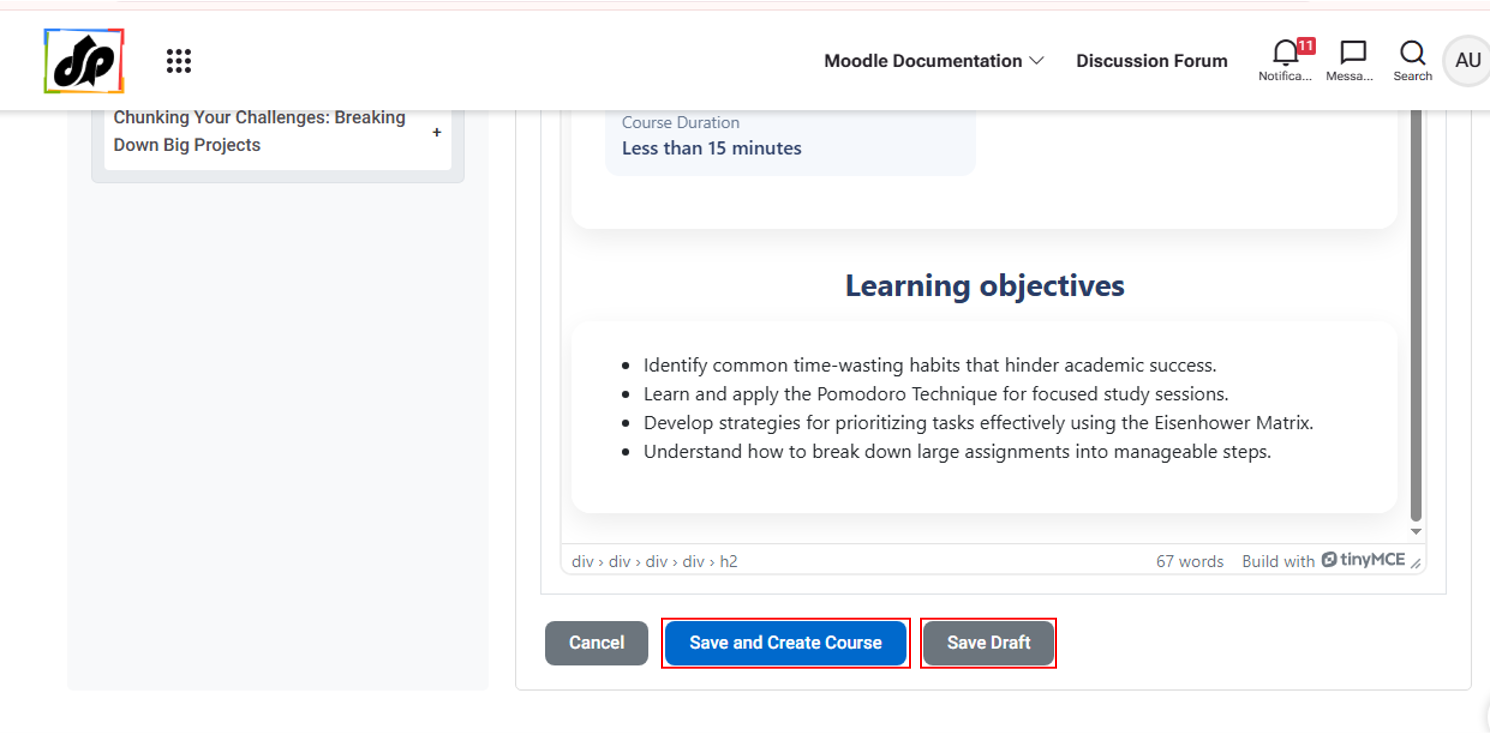
Save Generated Content as Draft
- Users can save generated content as a draft for later editing or course creation.
- Drafts allow users to continue their work without losing progress.
- Saved drafts are linked to the specific course where the content was generated.
Load Previous Drafts
- Users can access previously saved drafts from Step 1 of the same course.
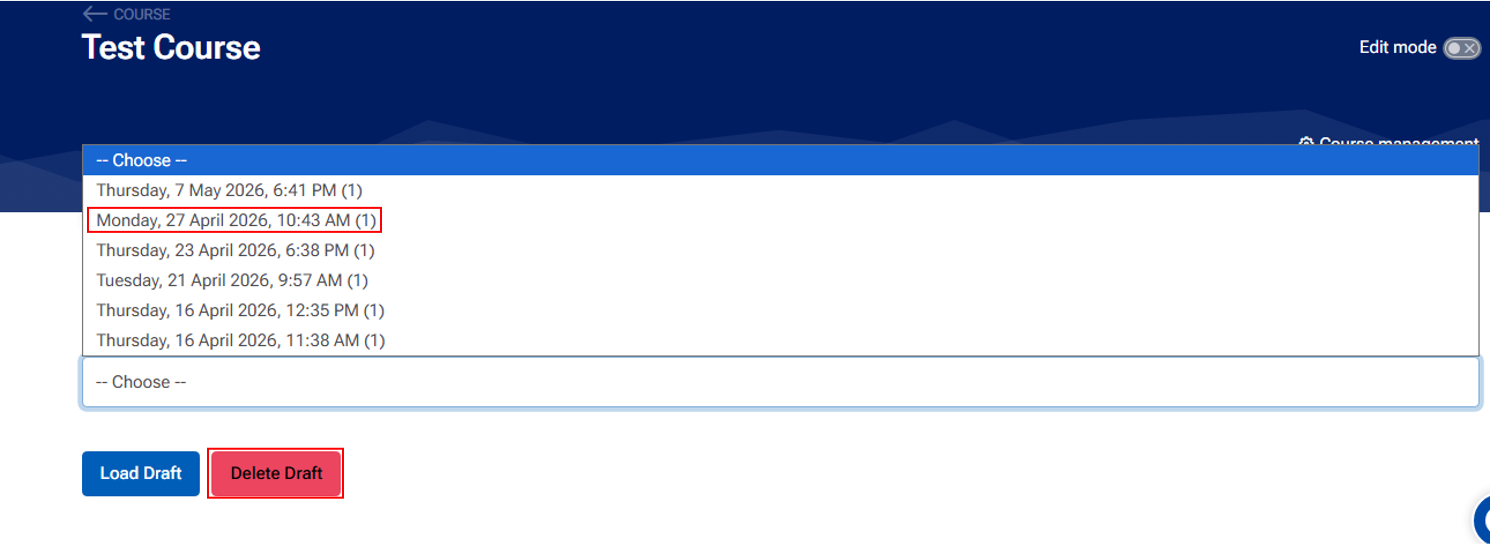
- If draft data exists for the selected course, a Manage Draft Data button will be displayed.
- Users must:
- Open the same course
- Navigate to HaccGen
- Go to Step 1
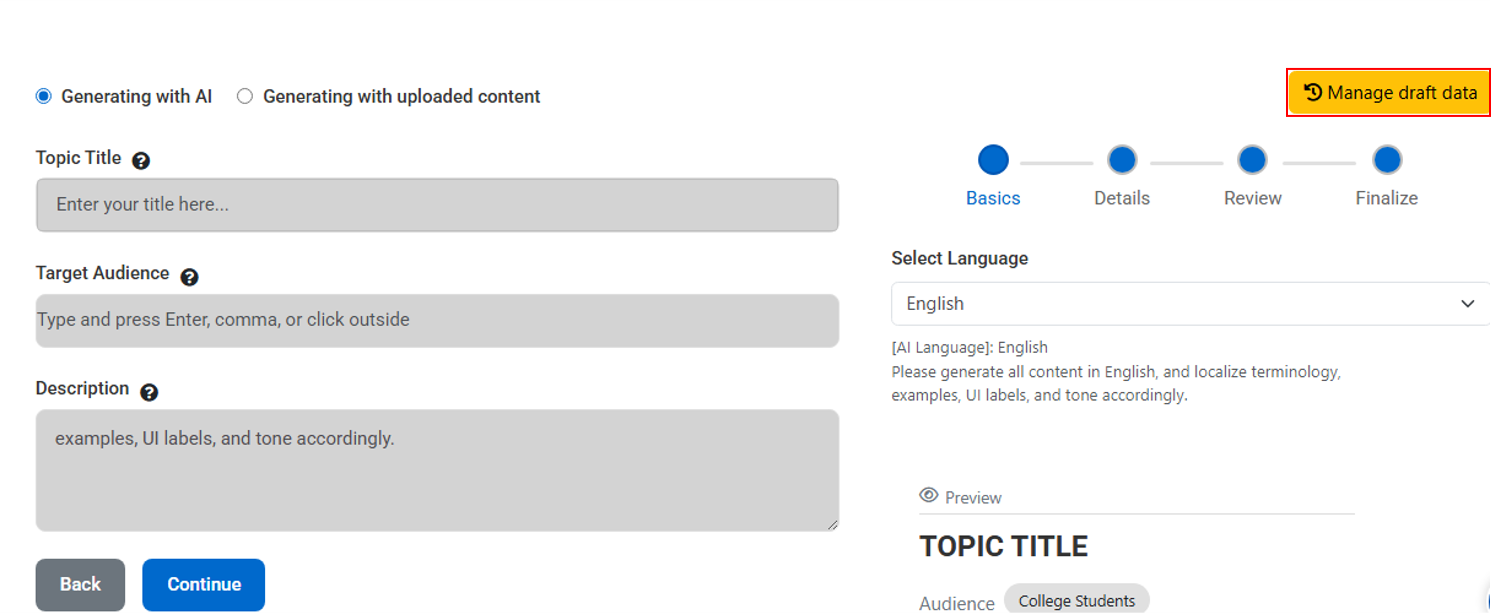
- From Manage Draft Data, users can:
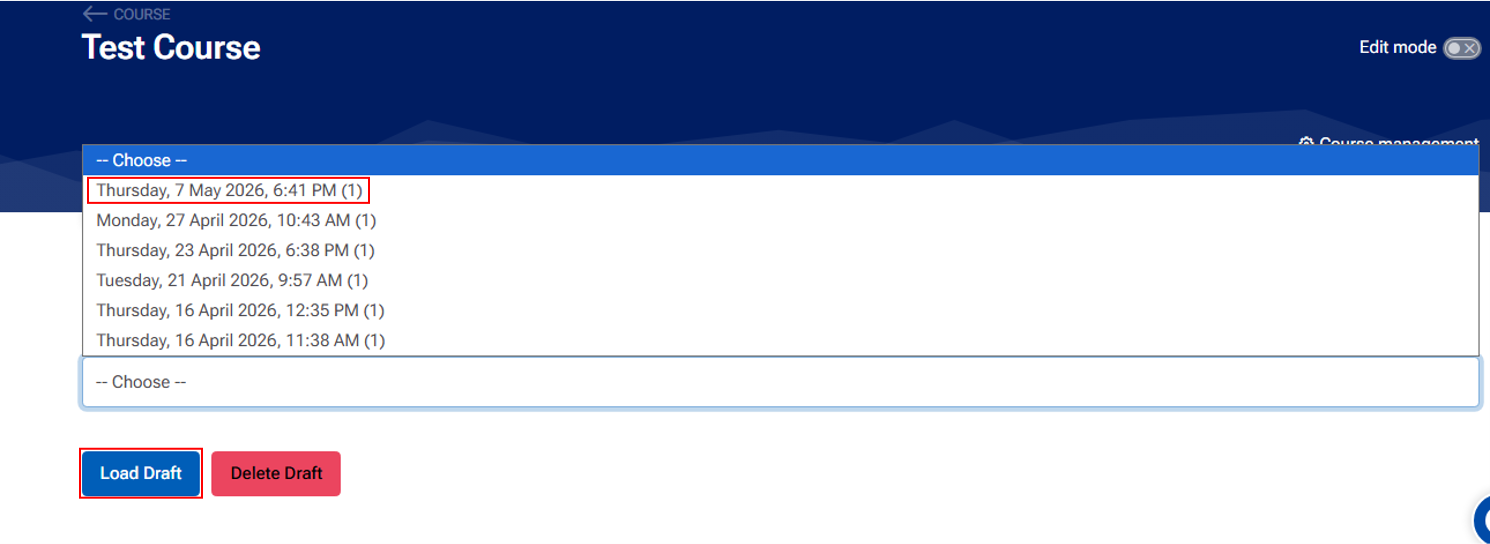
- View saved drafts
- Load a draft for editing
- Continue working on previously saved content
Delete Drafts
- Users can delete unwanted or outdated drafts from the Manage Draft Data section.
- Deleted drafts cannot be recovered.
Continue Editing Later
- Draft functionality enables users to pause their work and continue later.
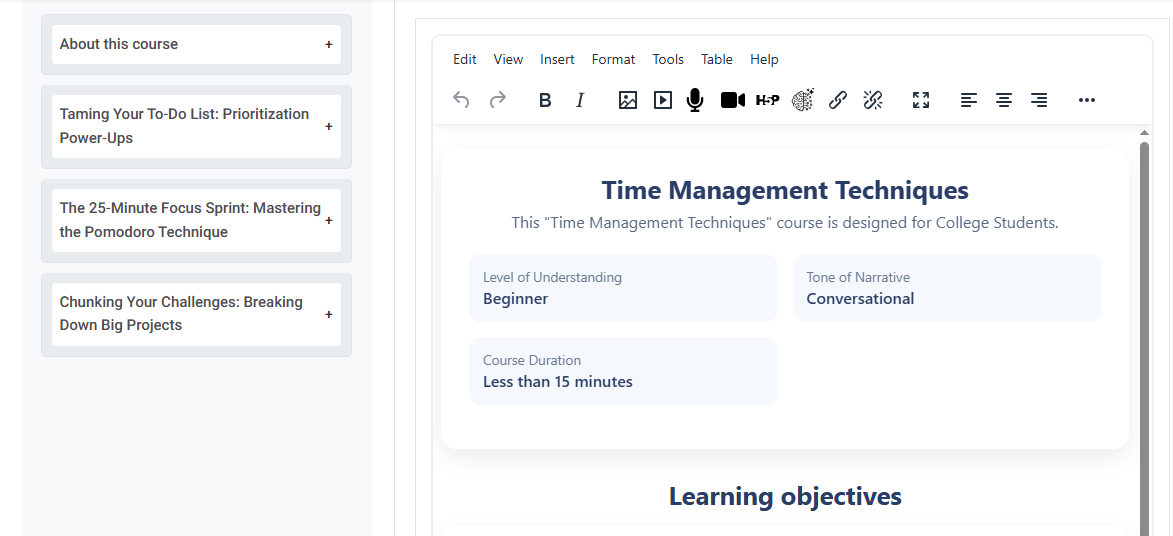
- After loading a draft, users can:
- Edit the content
- Save it again as a draft
- Create a course using the draft content
- Multiple save/edit cycles are supported until the final course is created.
