HACC Gen Platform
| Site: | HACC Gen |
| Course: | HACC Gen |
| Book: | HACC Gen Platform |
| Printed by: | |
| Date: | Tuesday, 22 September 2026, 4:21 AM |
1. Overview
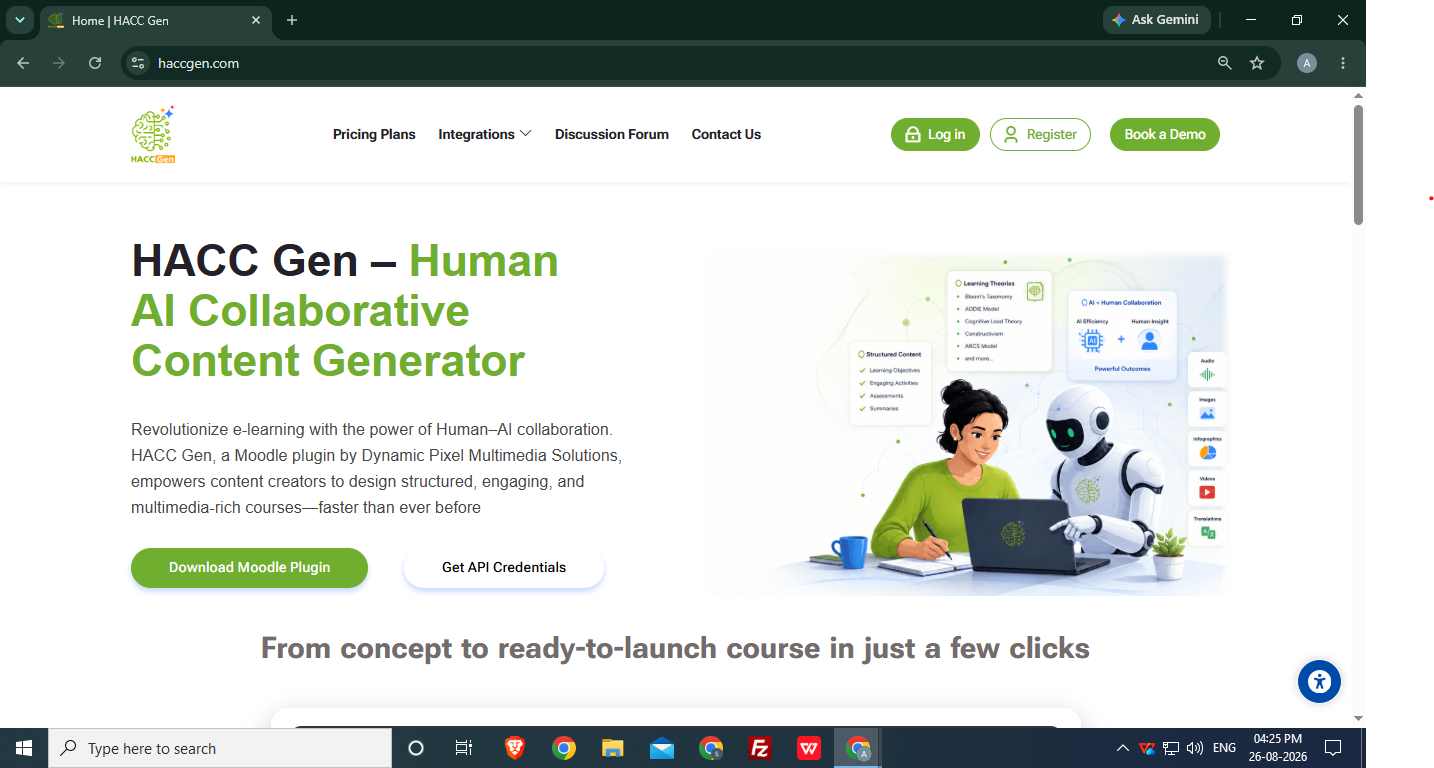
HACC Gen (Human AI Collaborative Content Generator) is an AI-powered platform that combines human creativity with artificial intelligence efficiency to create world-class e-learning content. From generating a complete course outline with learning objectives to enriching it with multimedia elements, HACC Gen makes e-learning content creation effortless and collaborative.
Using a guided multi-step workflow, the plugin generates a complete course with content broken into topics, sub-topics and quizzes.
Philosophy -
HACC Gen introduces a Human-AI Collaborative Pedagogical Intelligence Architecture (HACPIA), a multi-agent AI framework purpose-built for instructional design and learning-content generation. Unlike conventional AI authoring tools that rely on a single LLM prompt-response paradigm, HACC Gen orchestrates multiple specialised AI agents, instructional-design reasoning engines, and human validation workflows to produce pedagogically aligned learning experiences.
Though it generates the content using AI, humans have complete control over it. Course creators can adjust the learning objectives for each topic, even add or modify topic and choose to have quizzes in each topic. It is based on the philosophy that humans are the knowledge experts, whereas AI can expedite the repetitive and boring tasks.
It is based on the following core pillars:
- Human in the Loop Theory
- ADDIE Model
- Cognitive Load Theory
- Bloom's Taxonomy
Additionally, it also considers the other Learning theories.
Generated content can be saved as a draft or automatically create a complete, structured course inside Moodle using Page and Quiz activities.
To navigate to the plugin, you need to go to the desired course and then:
Navigate to Desired Course → Course administration → More → HACC Gen
It is perfect for:
- Rapid course creation
- Converting PDFs into structured Moodle courses
- AI-assisted instructional design
- Automatic quiz generation
- Reducing course development time
2. HACC Gen Homepage

- Registered users can Login into HACC Gen platform using their credentials.
- New users can Register themselves to generate their credentials.
2.1. Login and Register
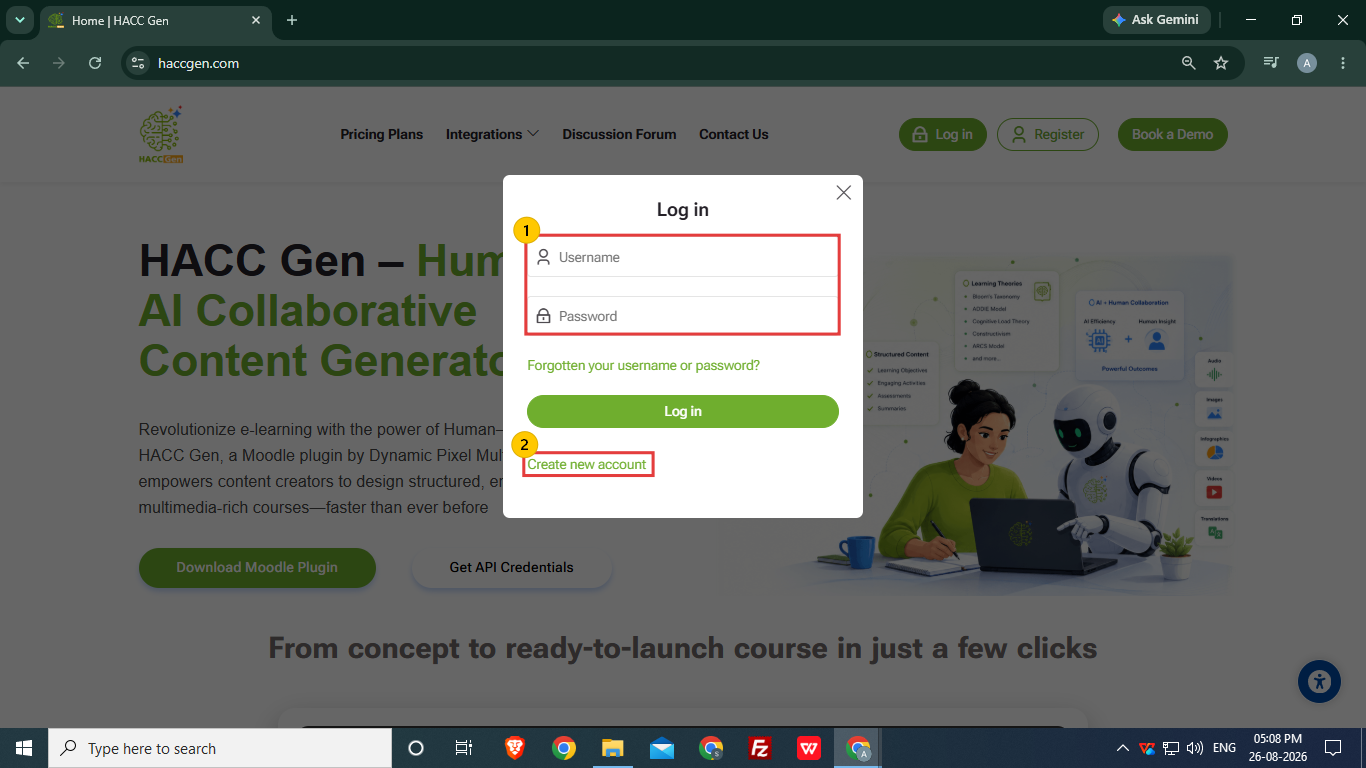
- Registered user can login into HACC Gen platform with username and password.
- New users can register themselves using Create new account.
3. HACC Gen Dashboard
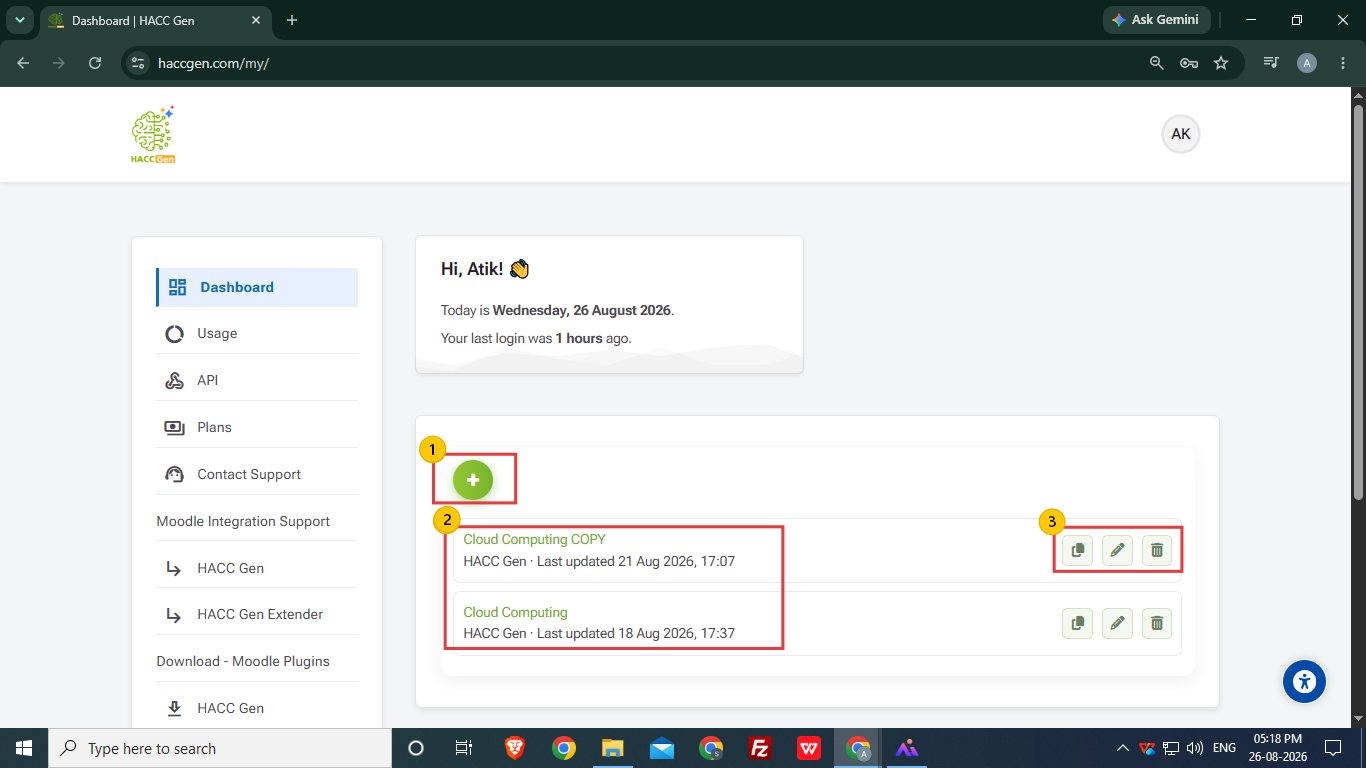
- Using the Plus (+) icon, user can start creating the course content using HACC Gen.
- List of created course structure are displayed on the dashboard.
- User can rename the course, remove it and also can make a copy of the course structure for comparison in case user wants to make any further changes in the original course structure.
4. Course Basics
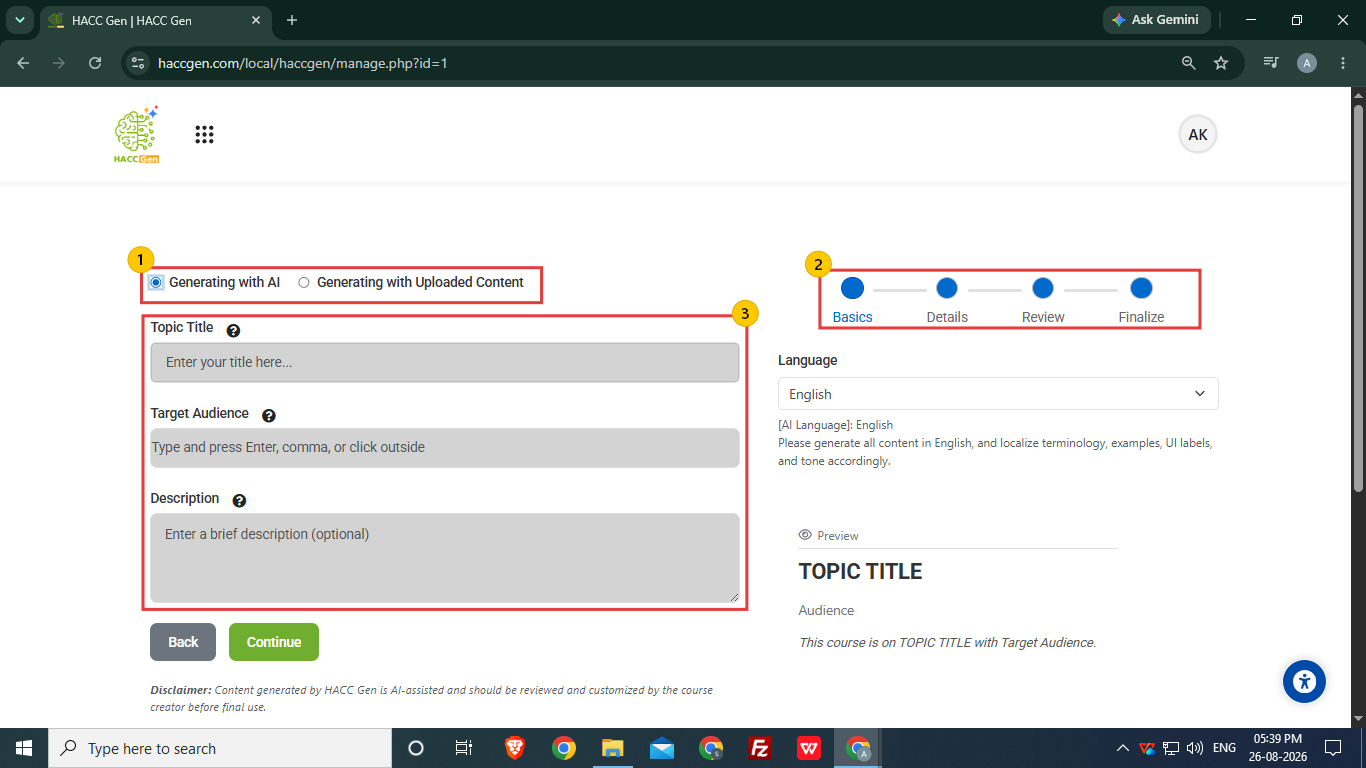
- Two options are available to create course content:
- Generating with AI
- Generating with uploaded content
-Select “Generating with AI” (default option).
-Select "Generating with uploaded content" if the user wants to generate course using uploaded content in PDF form. User can add up to 100 slides based upon their content.
- The course content creation is divided into 4 parts ,i.e. Basics, Details, Review and Finalize.
- Enter the basic details to define the type of content required.
- Topic Title- Enter the topic of the course.
- Target Audience- Set the audience accordingly as the content will be generated with reference to the target audience.
- Description (Optional)- Adding the description is not mandatory, but user can add according to requirements.
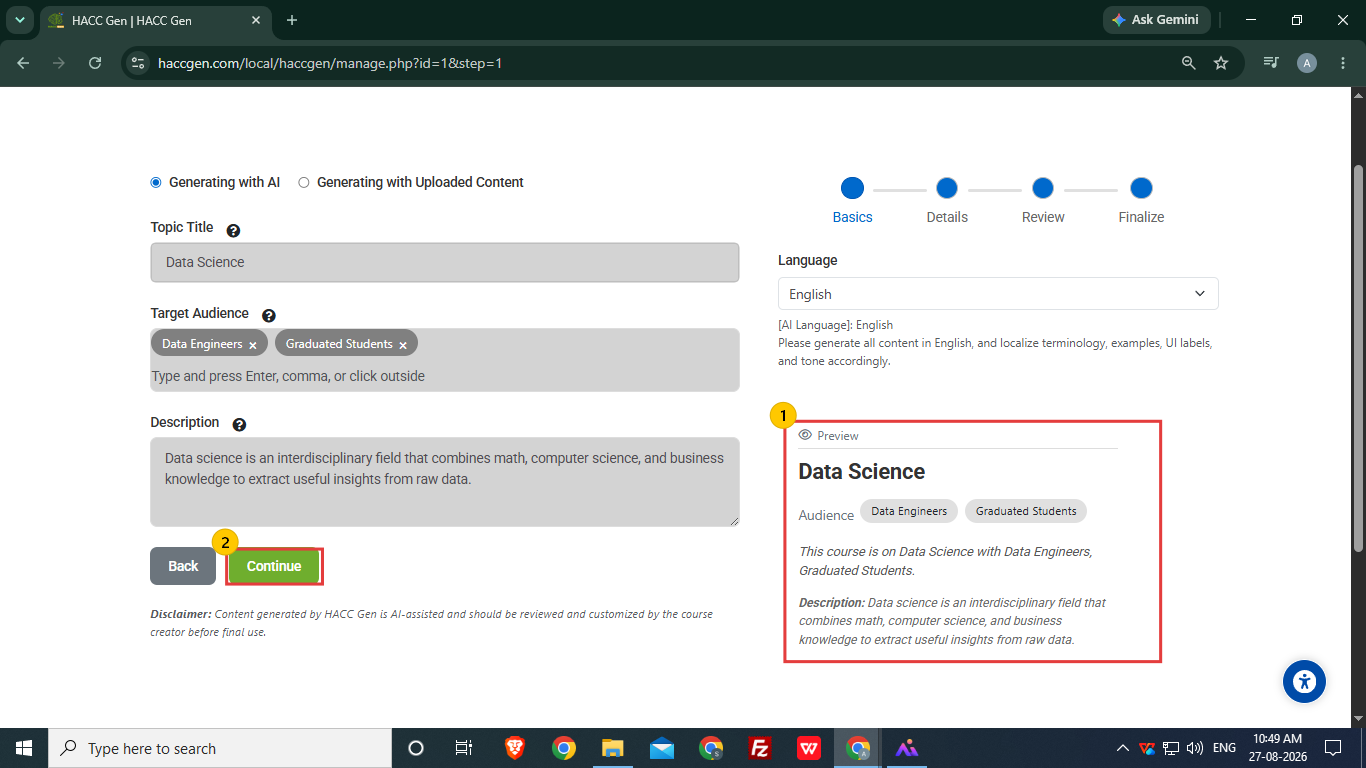
- Course creator/ Teacher can view the content outline at the preview section after adding the required information.
- Click Continue to proceed to next step.
5. Course Details
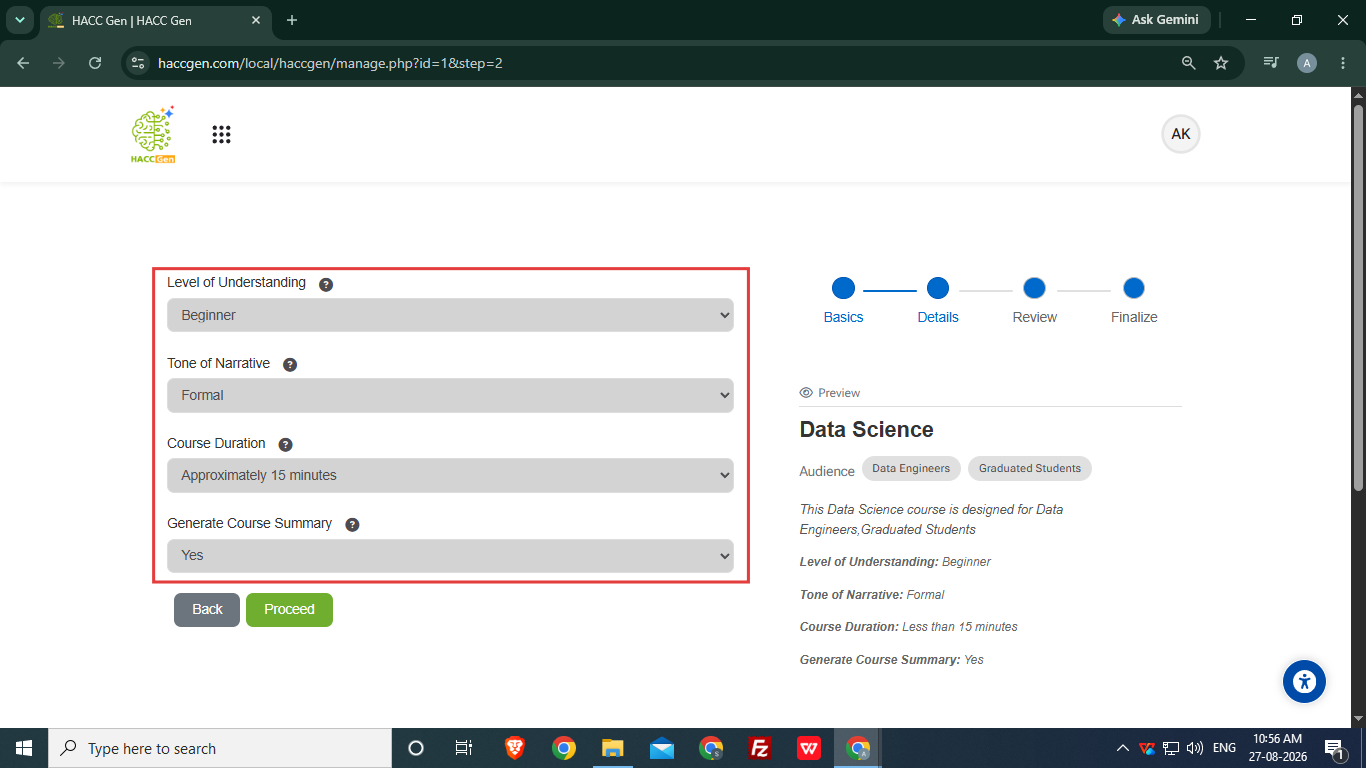
The user is required to set the details for the course content, i.e. Level of Understanding, Tone of Narrative, Course Duration and Generate Course Summary option.
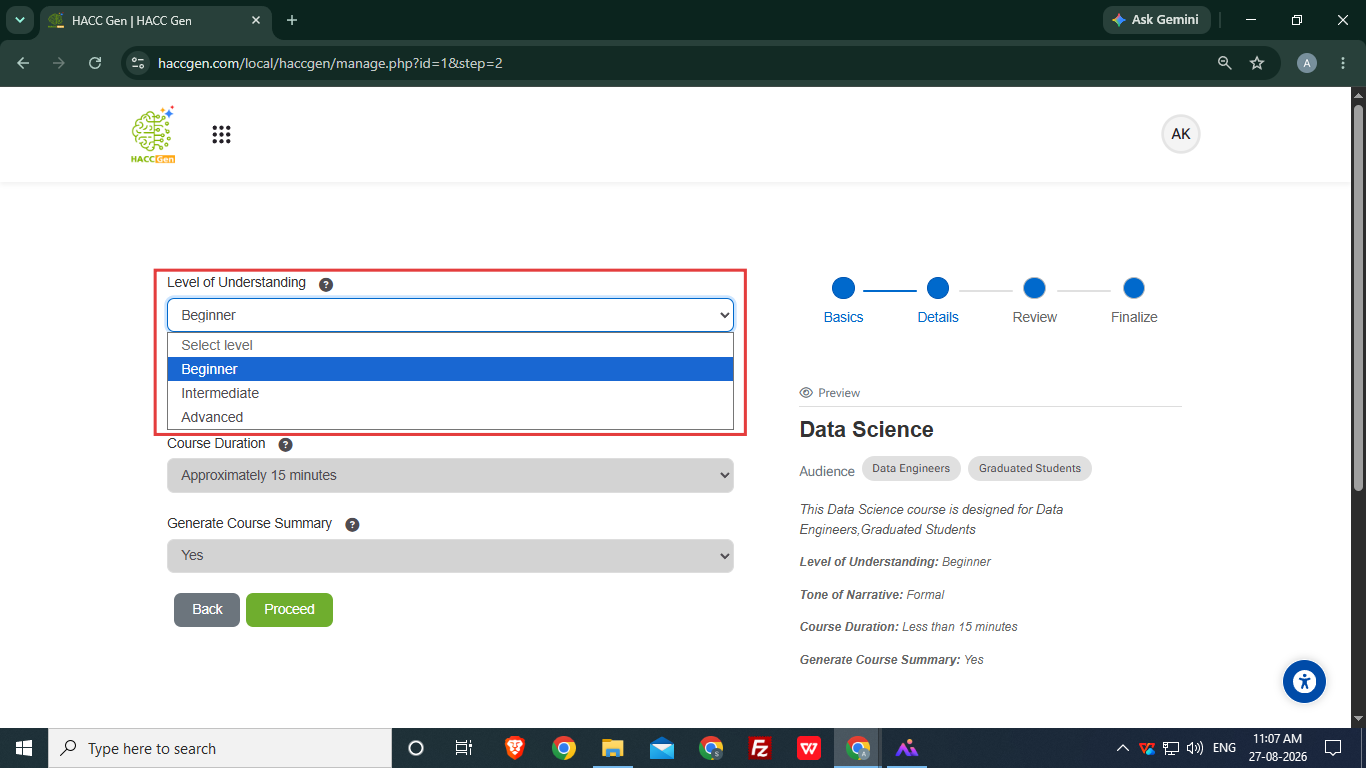
Select the Level of Understanding
- Beginner
- Intermediate
- Advanced
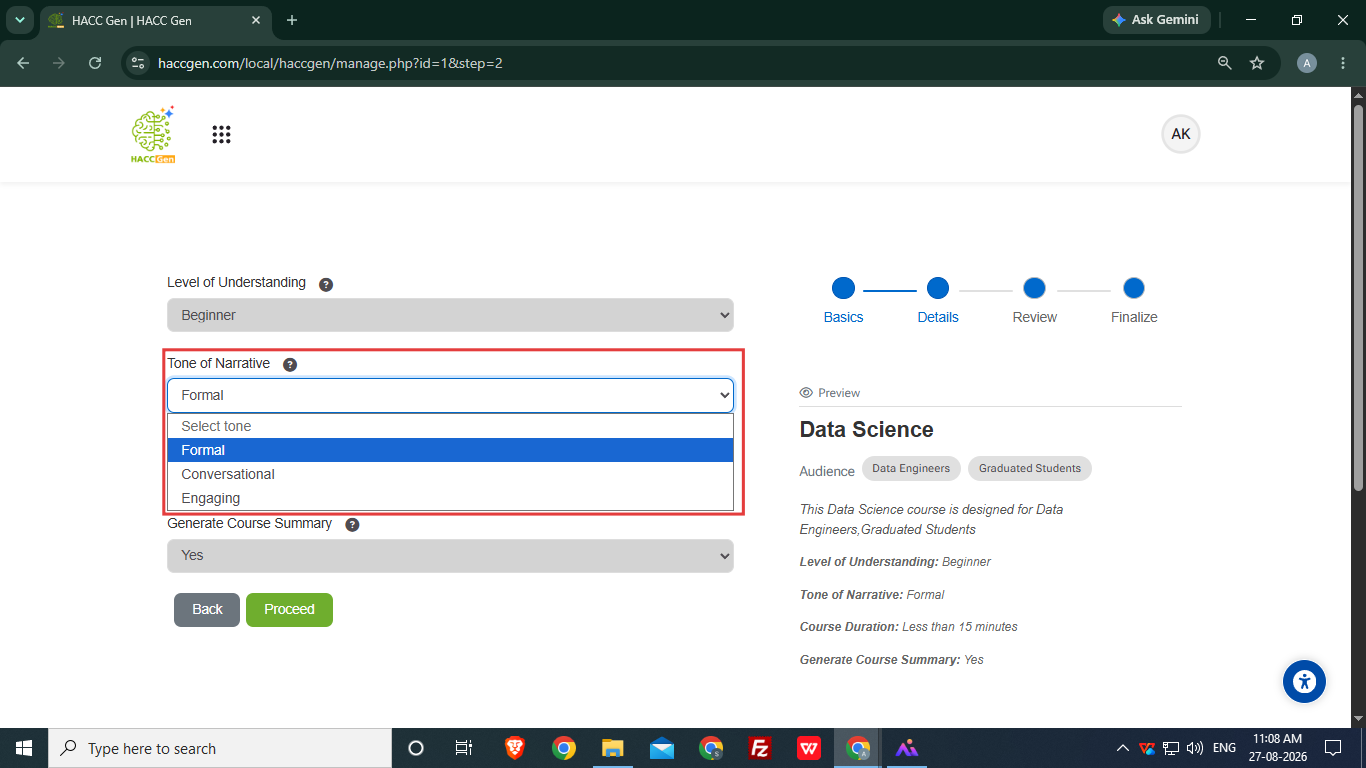
Select the Tone of Narrative
- Formal
- Conversational
- Engaging
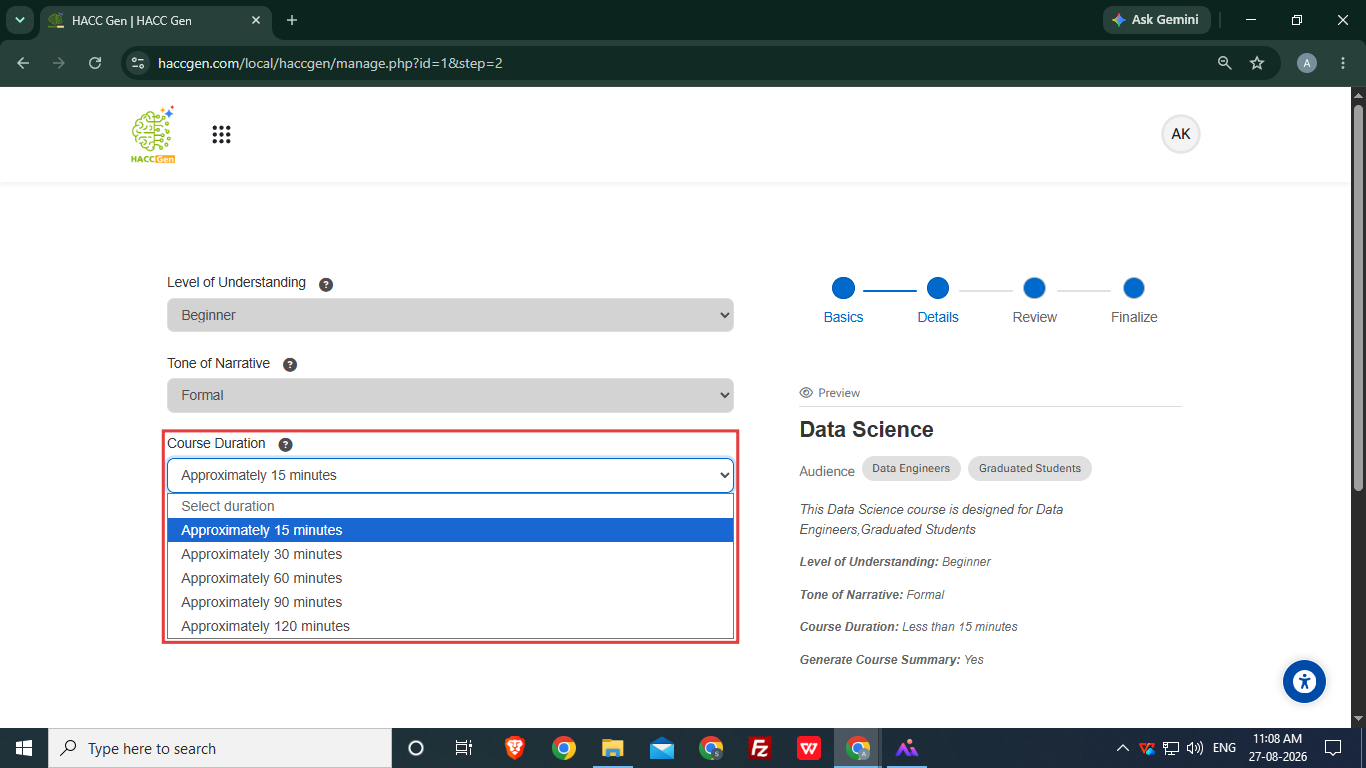
Set Course Duration
- User set duration of course from approximately 15 minutes to 120 minutes.
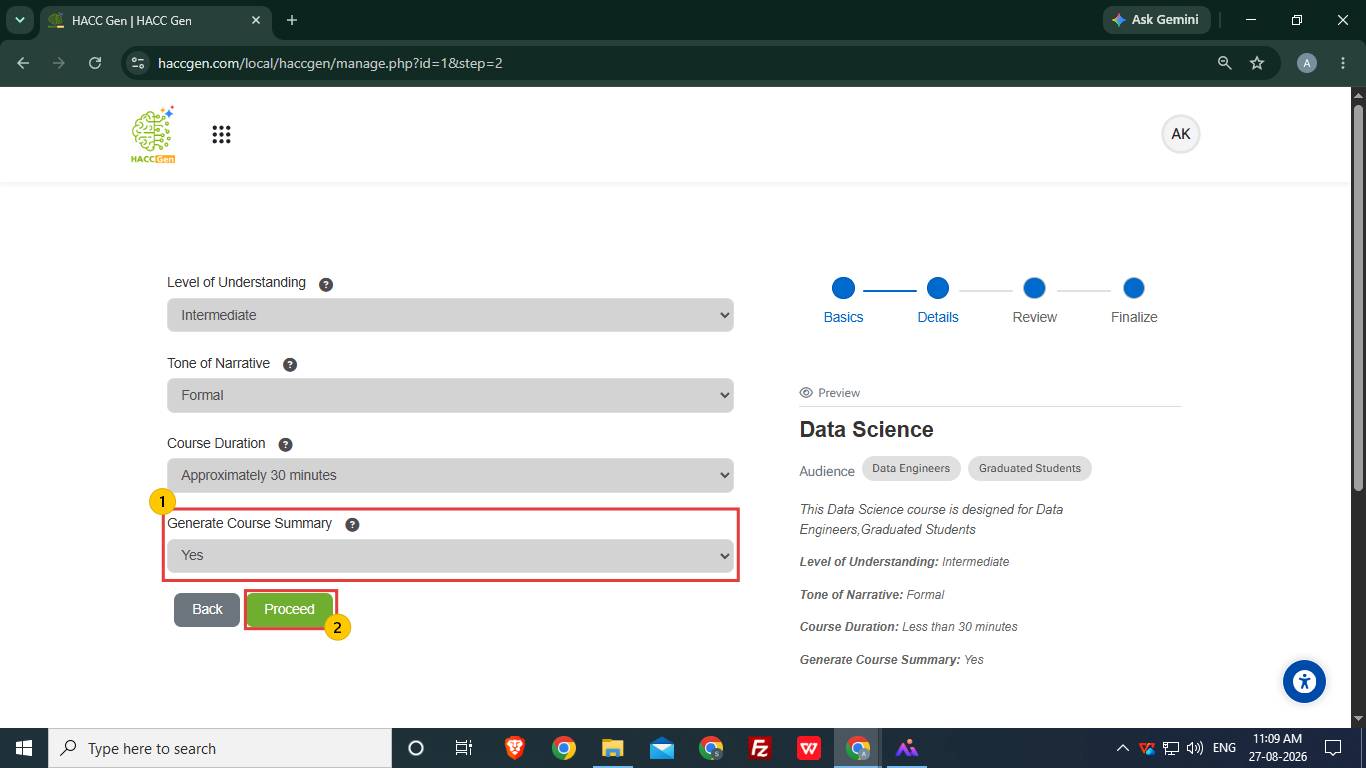
- User can choose whether to include the summary using the Generate Course Summary option.
- After selecting all the details, click Proceed.
6. Course Review
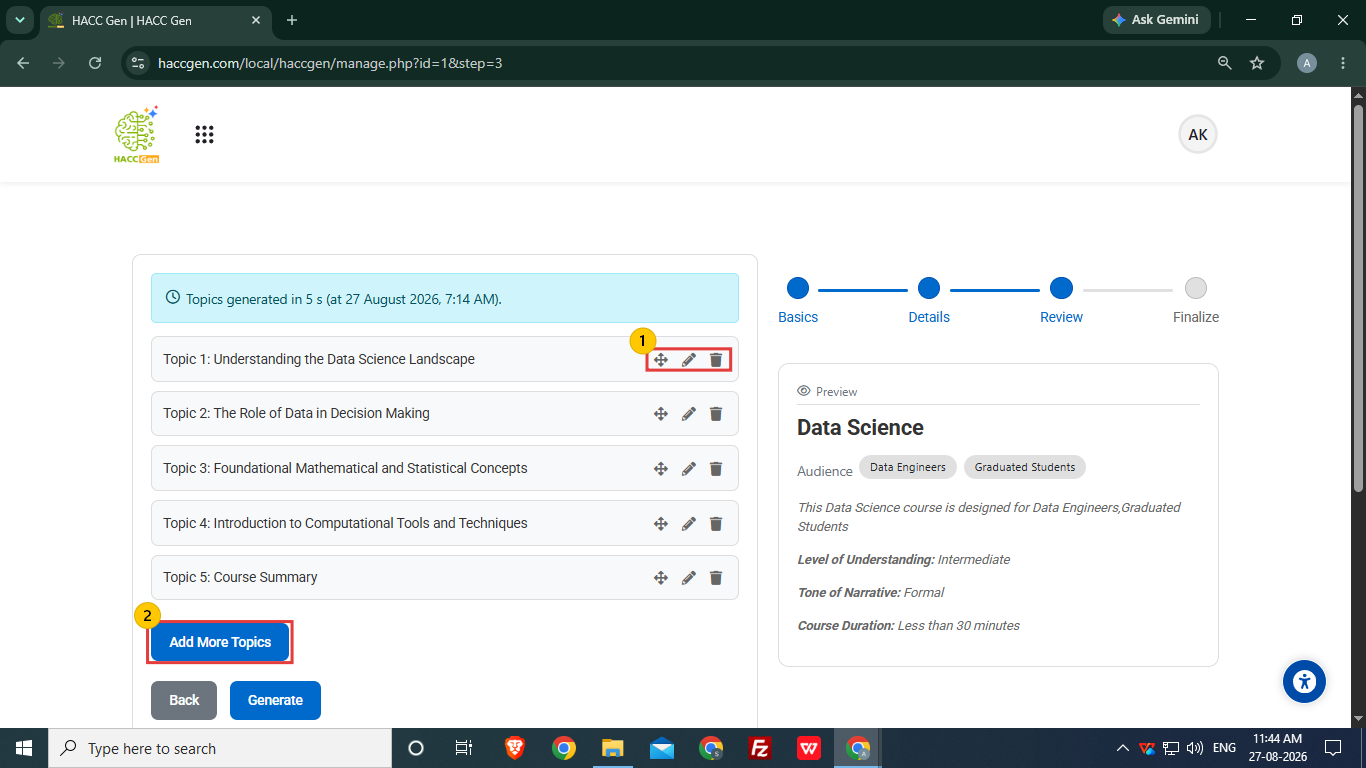
- User can edit and remove a particular topic and change the sequence of topics in review section.
- More topics can be added manually using Add More Topics option.
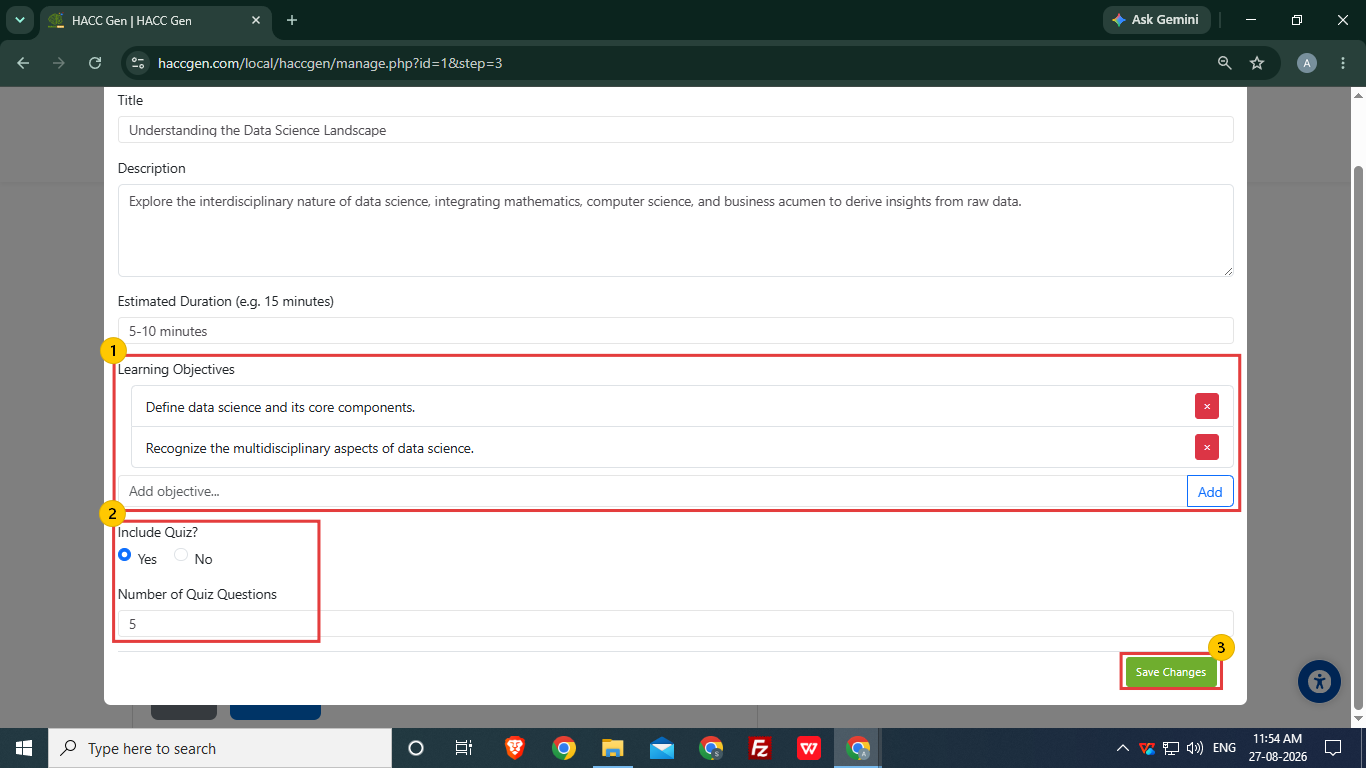
- The Learning Objectives can be edited/removed by users and more objectives can also be added.
- The user can select yes in Include Quiz option to add quiz questions with content and number of quiz questions can be set. User can set up to 20 questions.
- After reviewing the topic, click Save Changes.
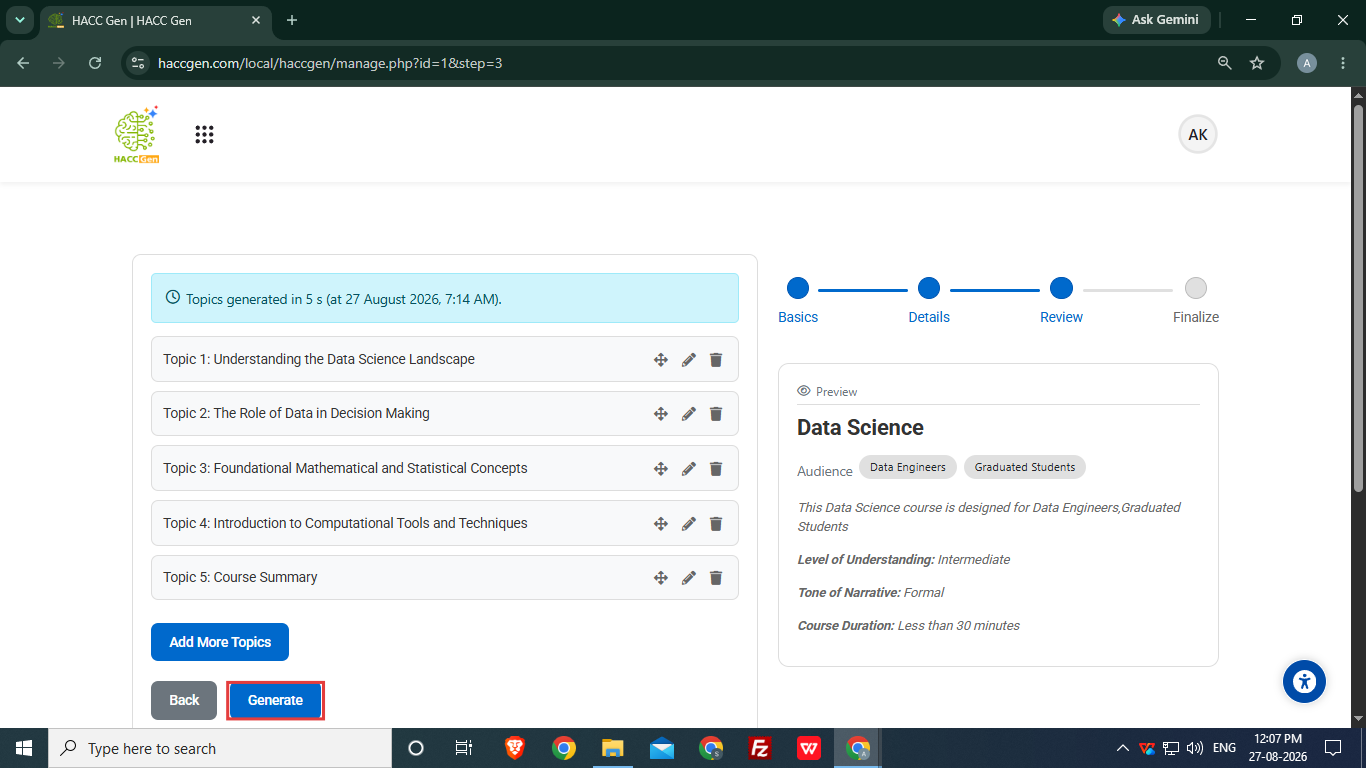
After final changes, Click on Generate option to start generating the course structure.
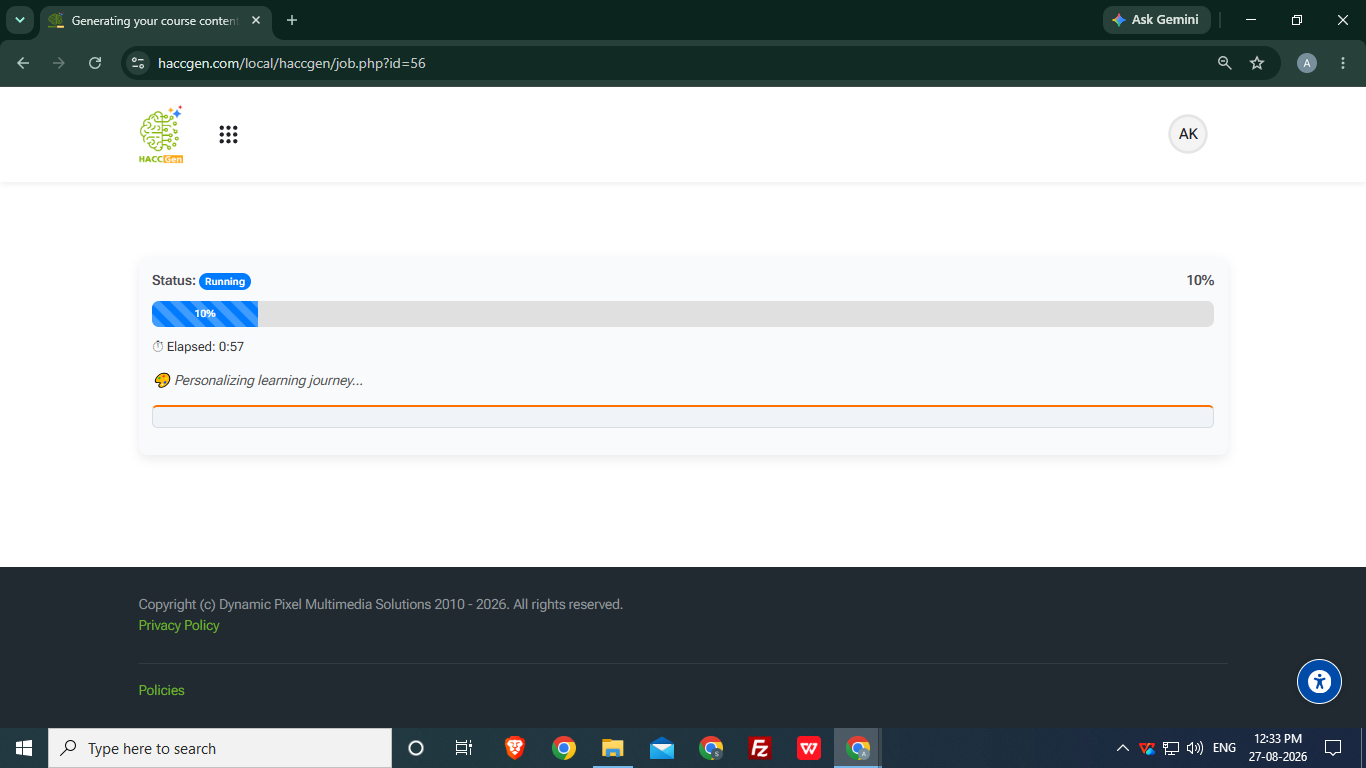
The generation of the course structure gets initiated at this stage. The CRON setup is necessary for the generating of course structure. It does not support local host server.
7. Course Finalize
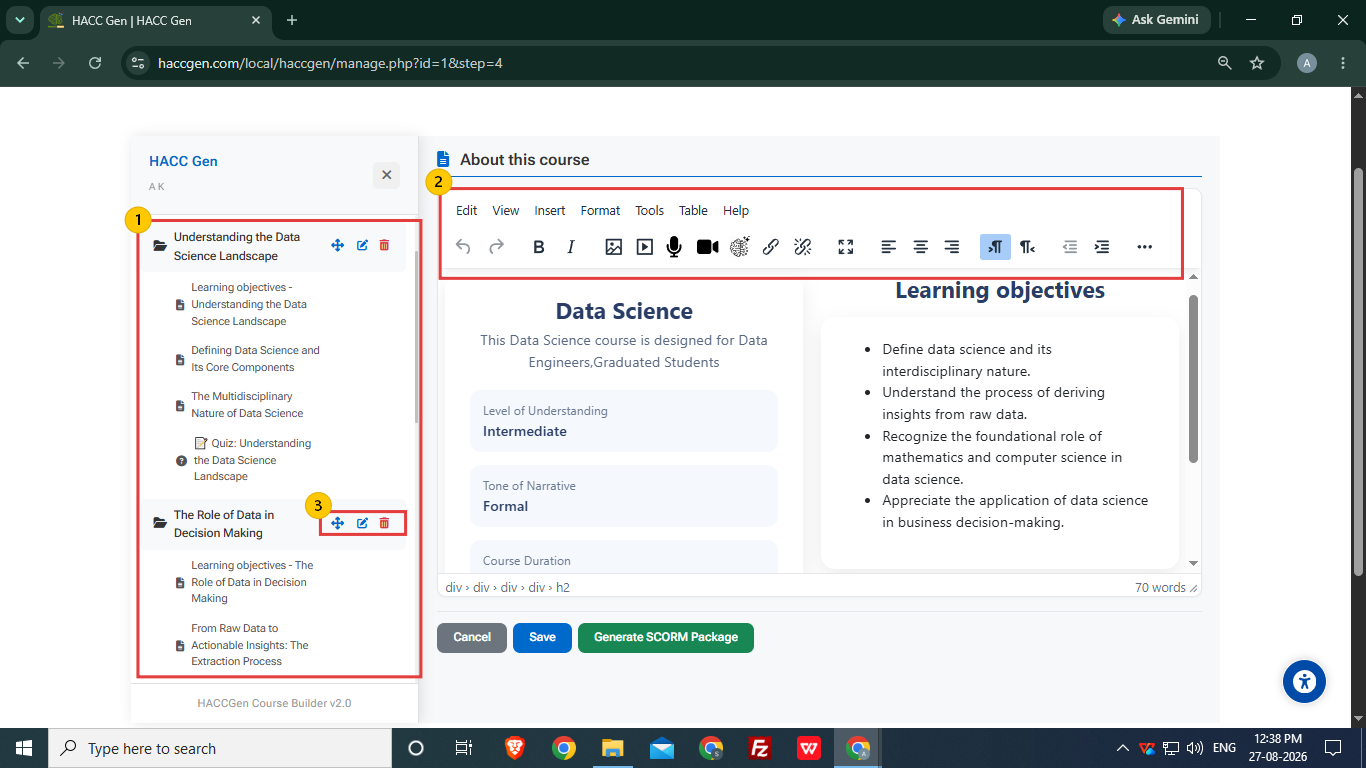
- The final course structure is generated for user to review/edit.
- The user can edit a particular page content using the tool bar.
- A particular topic and the pages inside the topic can be renamed/removed if required and sequence of topics and pages can also changed.
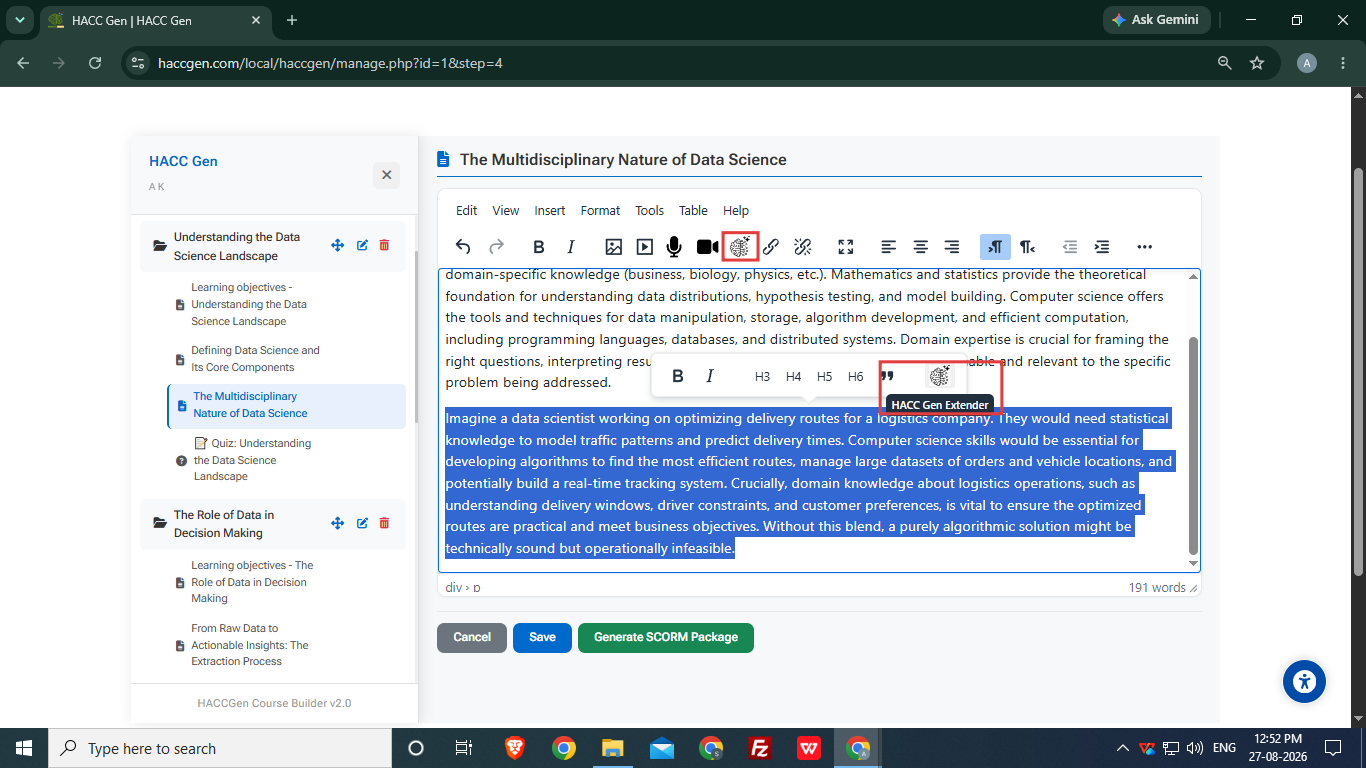
The user can simply select the content that they want to customize and select the HACC Gen Extender or they select the option from the toolbar also. It provides various options of customization.
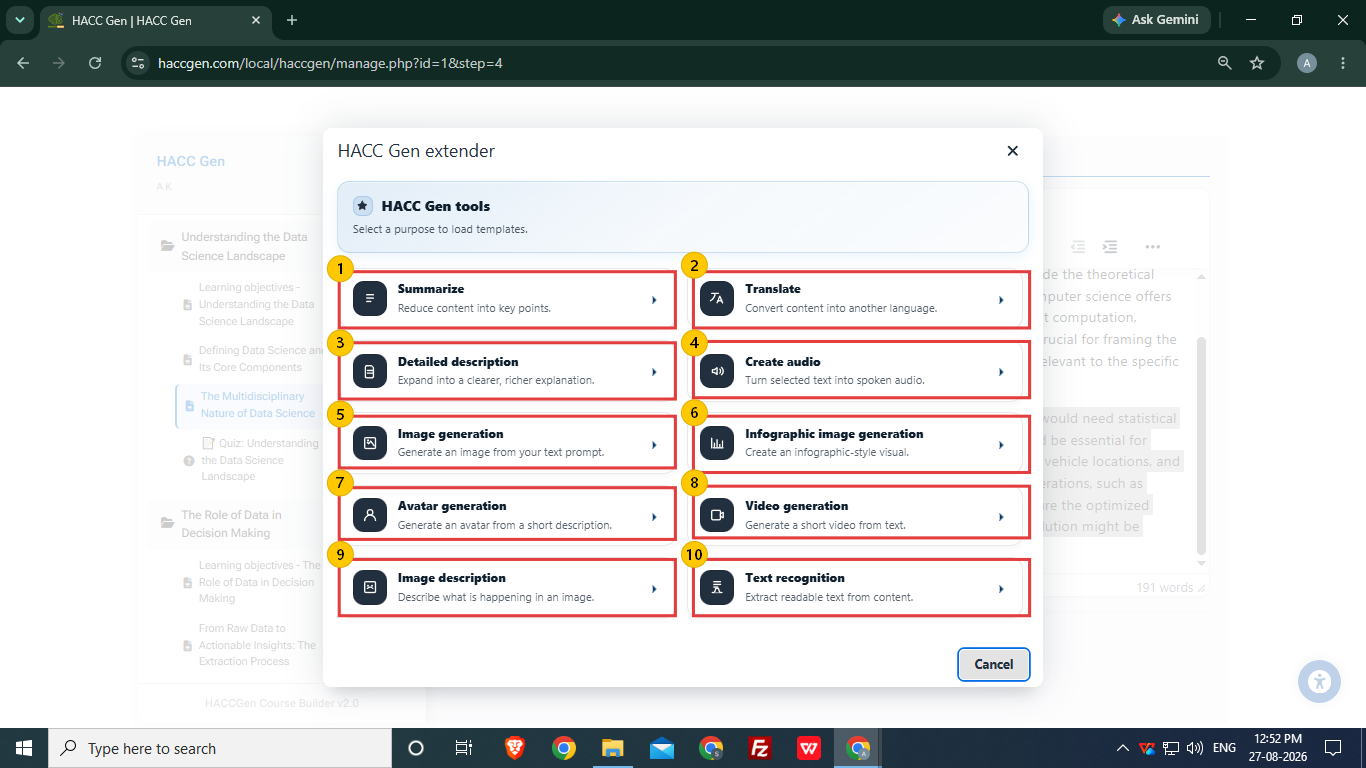
- Summarize: The content is reduced into key points.
- Translate: Selected content can be converted into another language.
- Detailed Description: The content is expanded into richer explanation.
- Create Audio: Spoken audio is created using the selected text.
- Image Generation: Images can be generated through text prompt.
- Infographic Image Generation: It creates an infographic visuals through text prompt.
- Avatar Generation: It creates an avatar from short description.
- Video Generation: Short video can be generated using selected text.
- Image Description: It can generate description from the image.
- Text Recognition: It is used to extract readable text from content.
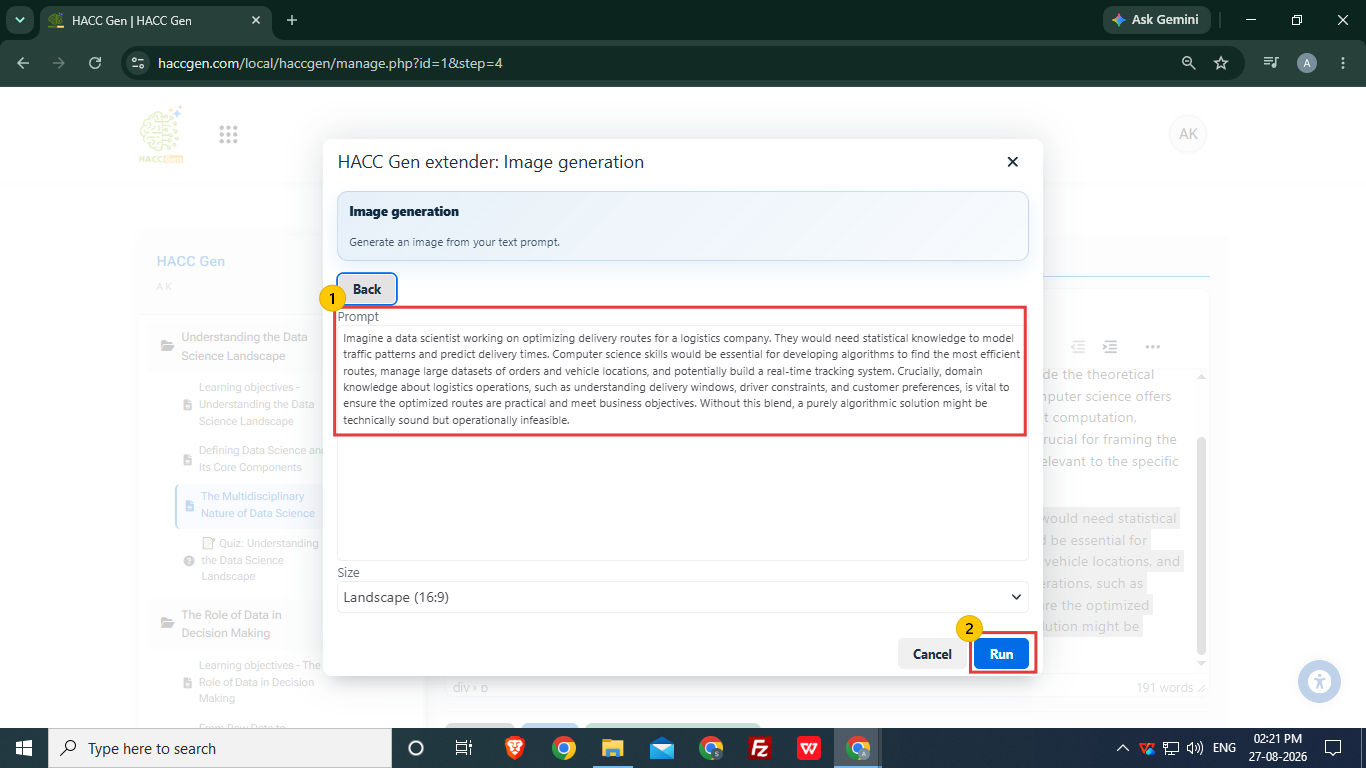
- Suppose user select Image Generation, then the selected text content will be taken as prompt for generating the image. The prompt can be edited as per requirements.
- To generate the image, click Run option.
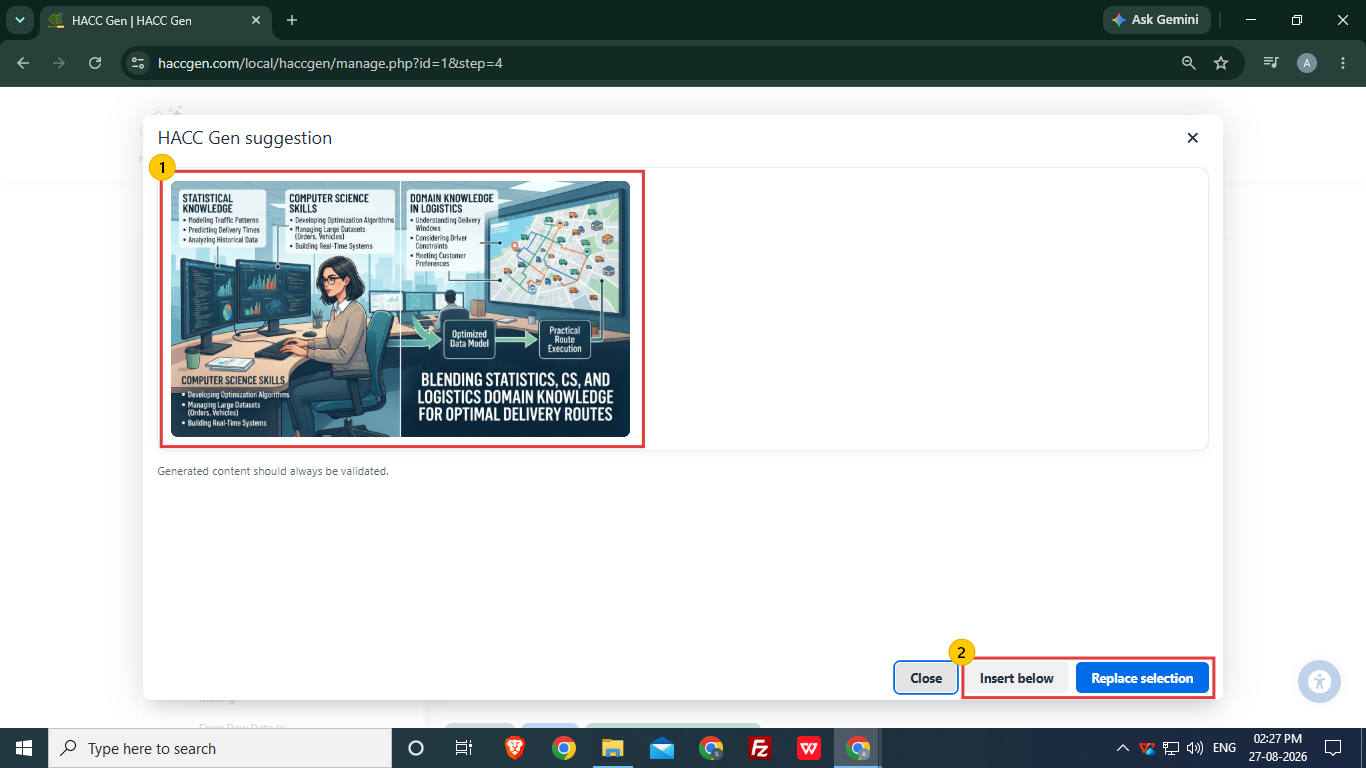
- The suggested image is generated using image generation tool for user to preview before using it.
- The user can insert the generated image below the selected content or they can replace the selected content with the generated image as per the requirements.
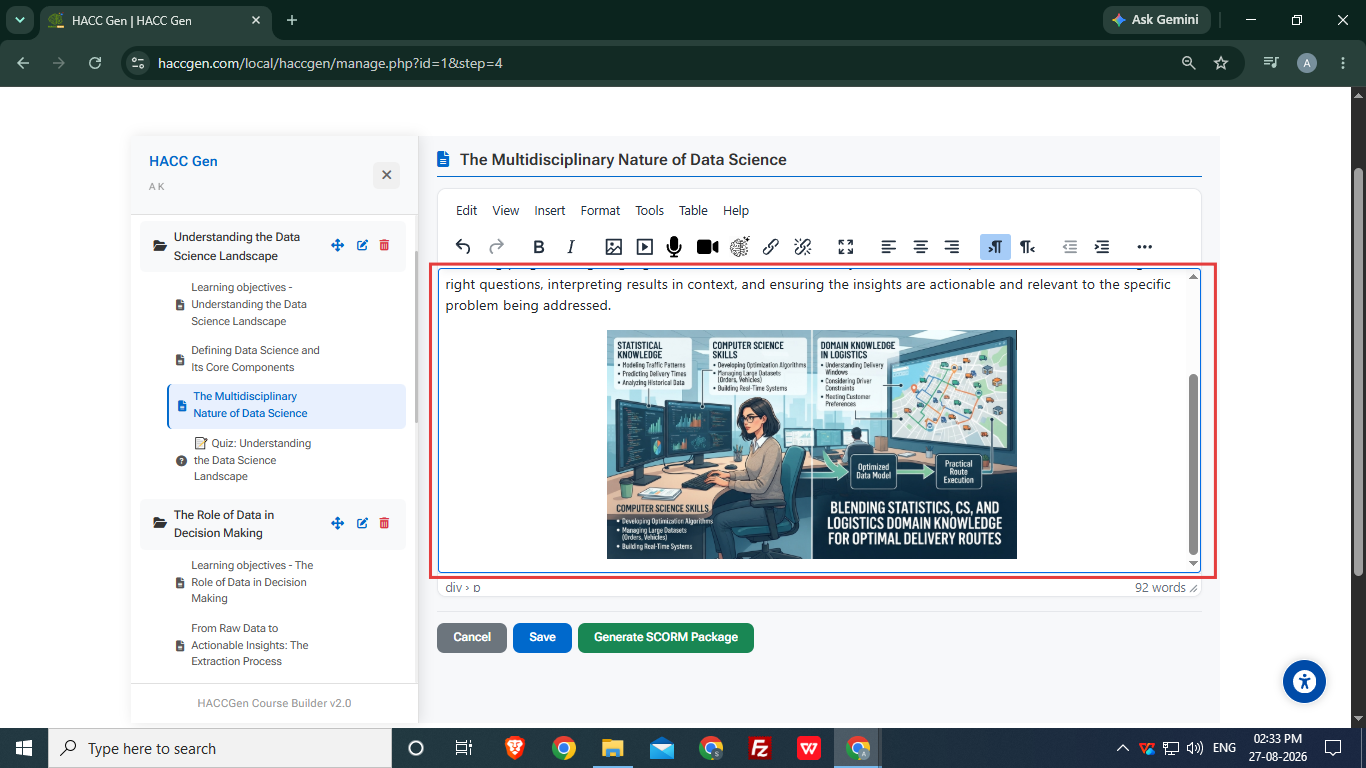
The selected content is replaced by the generated image.
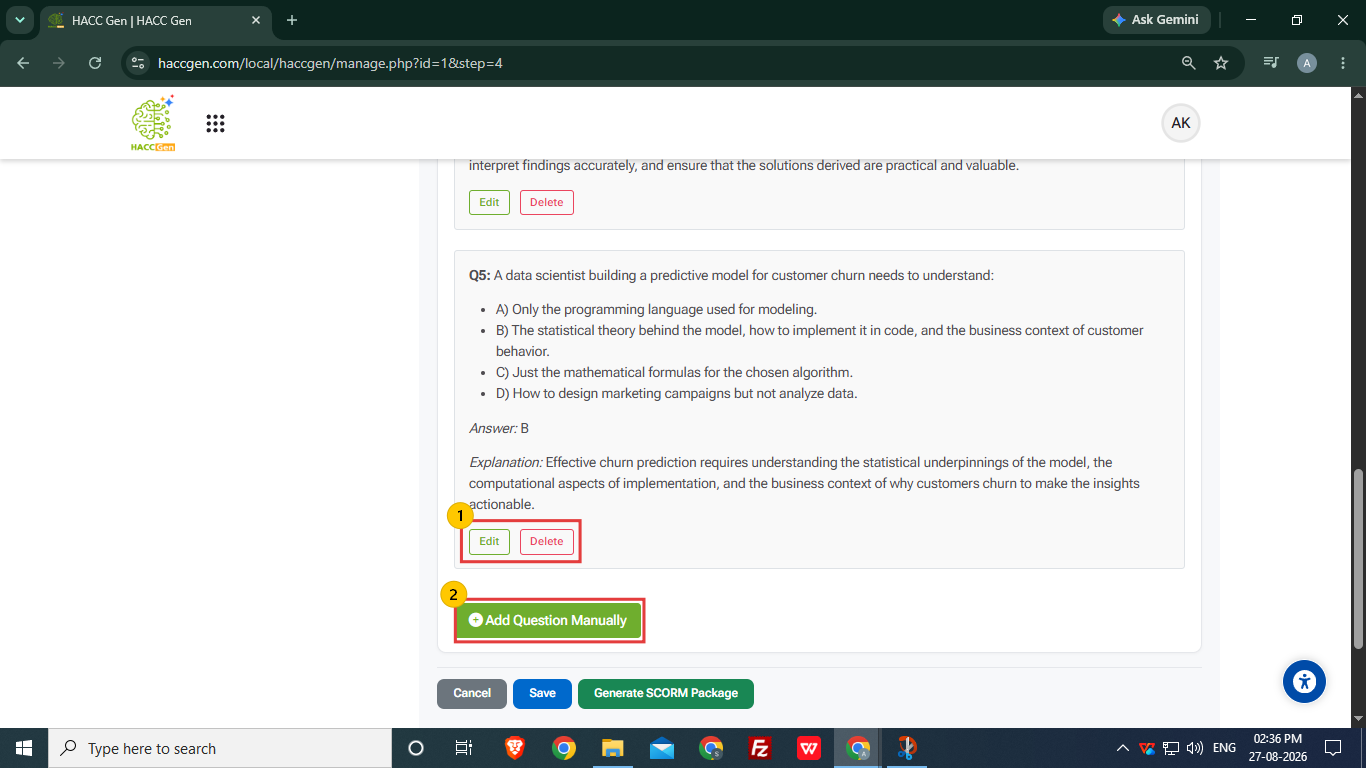
- User can preview and edit/remove a particular question inside the quiz.
- More questions can be added using Add Question Manually option.
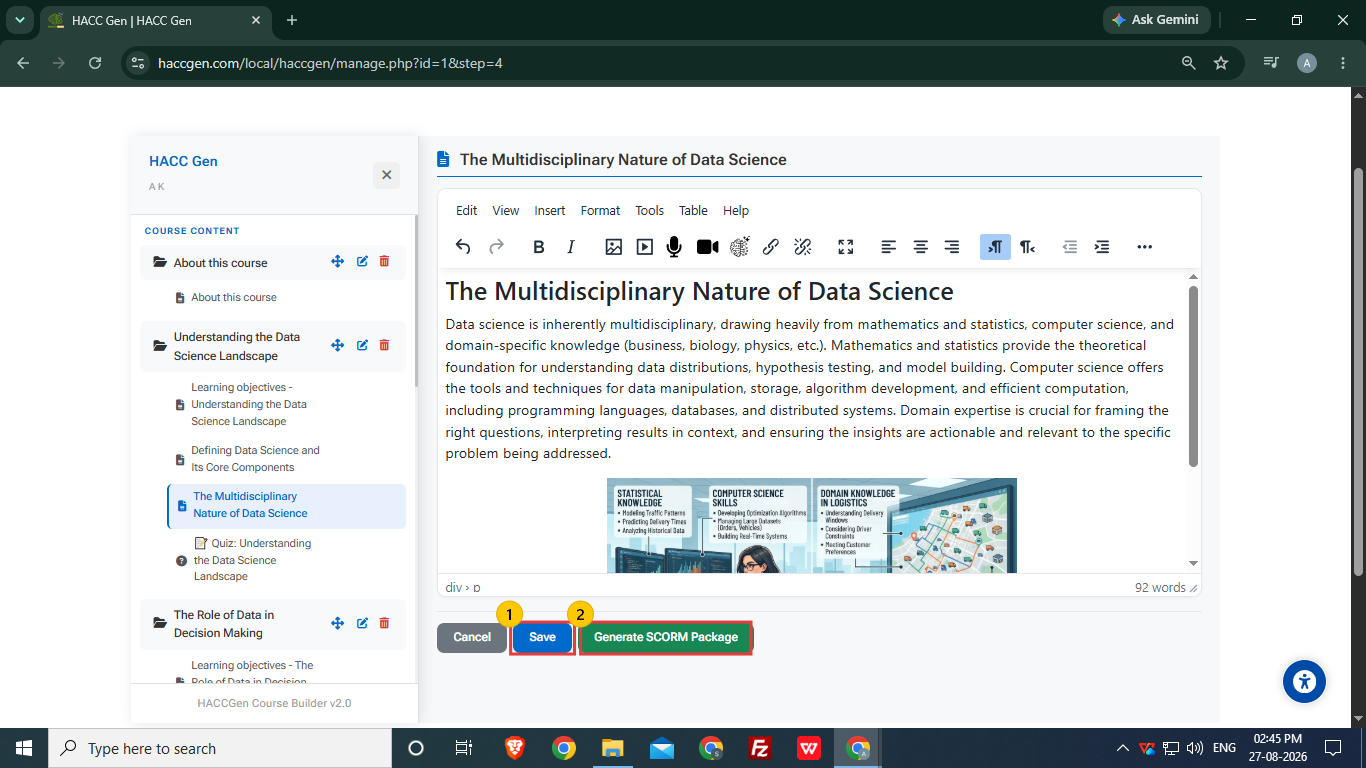
- After final changes, user can simply click on Save option to create the course structure and view it on the HACC Gen dashboard.
- The user can also generate the zip file for course structure using Generate SCORM Package option.
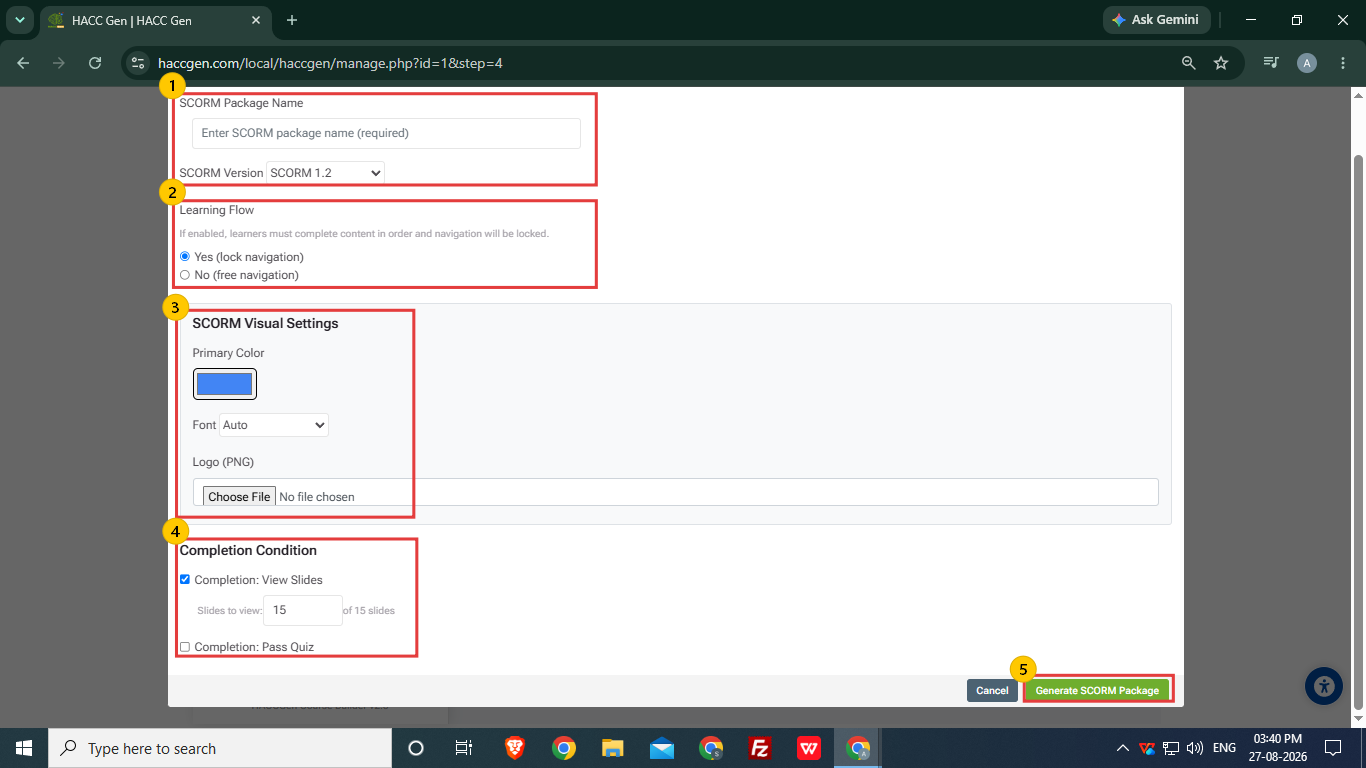
- The user is required to add the SCORM Package name and select the SCORM Version.
- The type of navigation can be selected in Learning Flow.
- The primary color, font and logo can be change in SCORM Visual Settings.
- The Completion Condition is set accordingly.
- After making all changes, click Generate SCORM Package.
A zip file will be downloaded to user's local system, which they can upload on their LMS or learning platforms.