HACC Gen Platform
7. Course Finalize
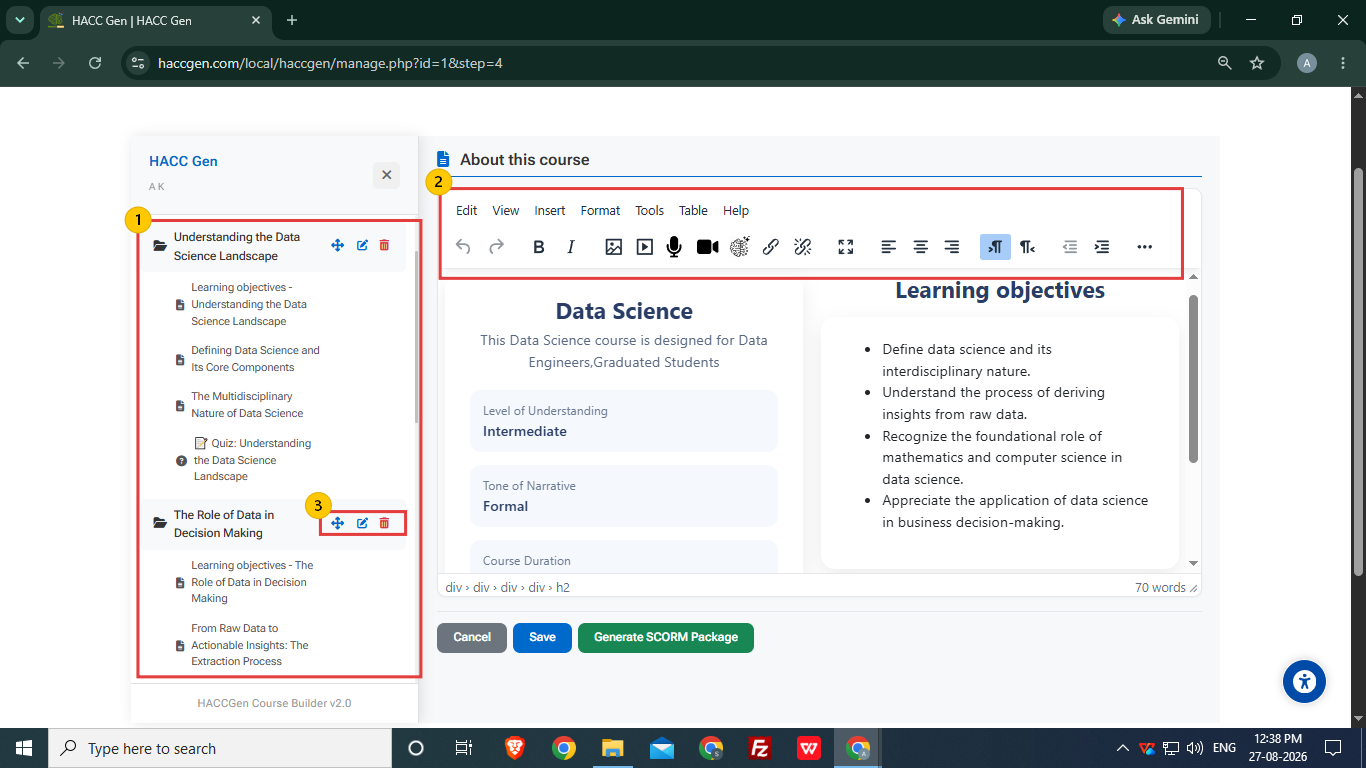
- The final course structure is generated for user to review/edit.
- The user can edit a particular page content using the tool bar.
- A particular topic and the pages inside the topic can be renamed/removed if required and sequence of topics and pages can also changed.
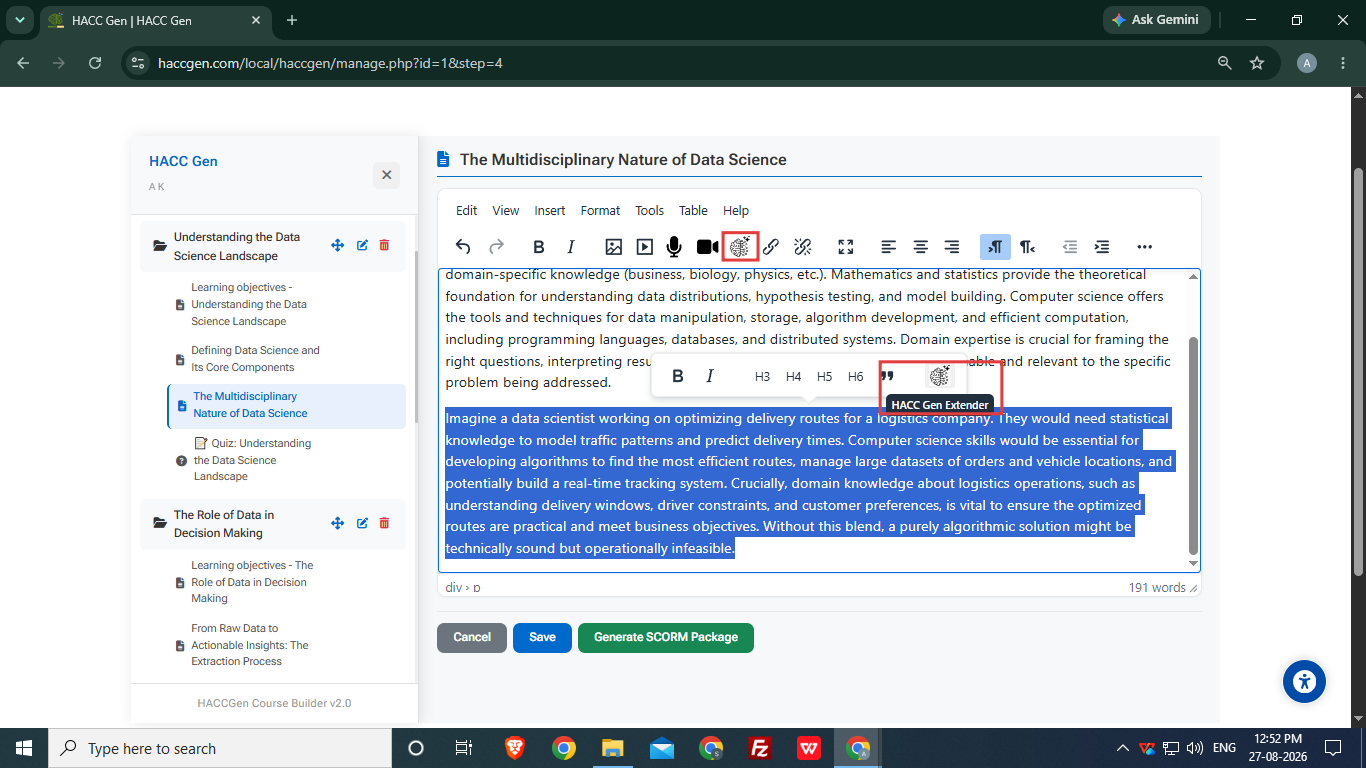
The user can simply select the content that they want to customize and select the HACC Gen Extender or they select the option from the toolbar also. It provides various options of customization.
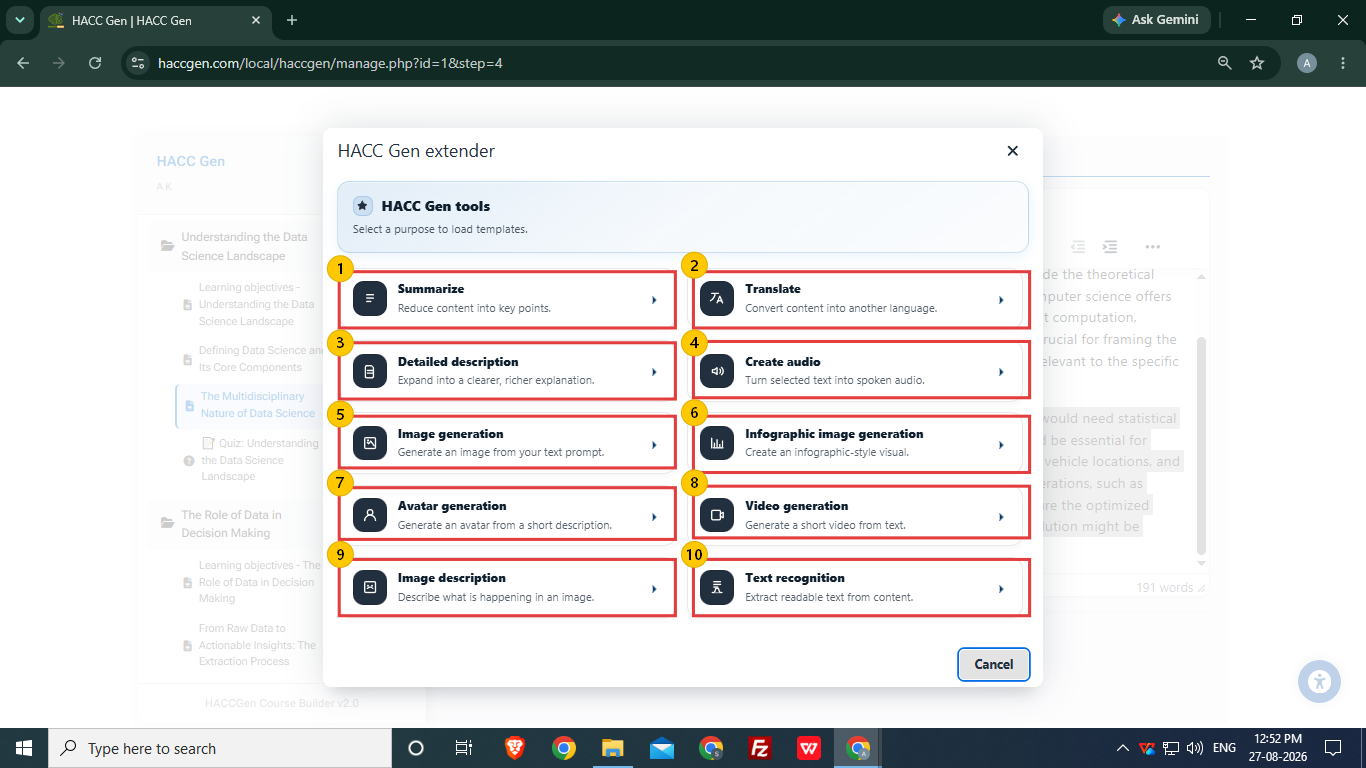
- Summarize: The content is reduced into key points.
- Translate: Selected content can be converted into another language.
- Detailed Description: The content is expanded into richer explanation.
- Create Audio: Spoken audio is created using the selected text.
- Image Generation: Images can be generated through text prompt.
- Infographic Image Generation: It creates an infographic visuals through text prompt.
- Avatar Generation: It creates an avatar from short description.
- Video Generation: Short video can be generated using selected text.
- Image Description: It can generate description from the image.
- Text Recognition: It is used to extract readable text from content.
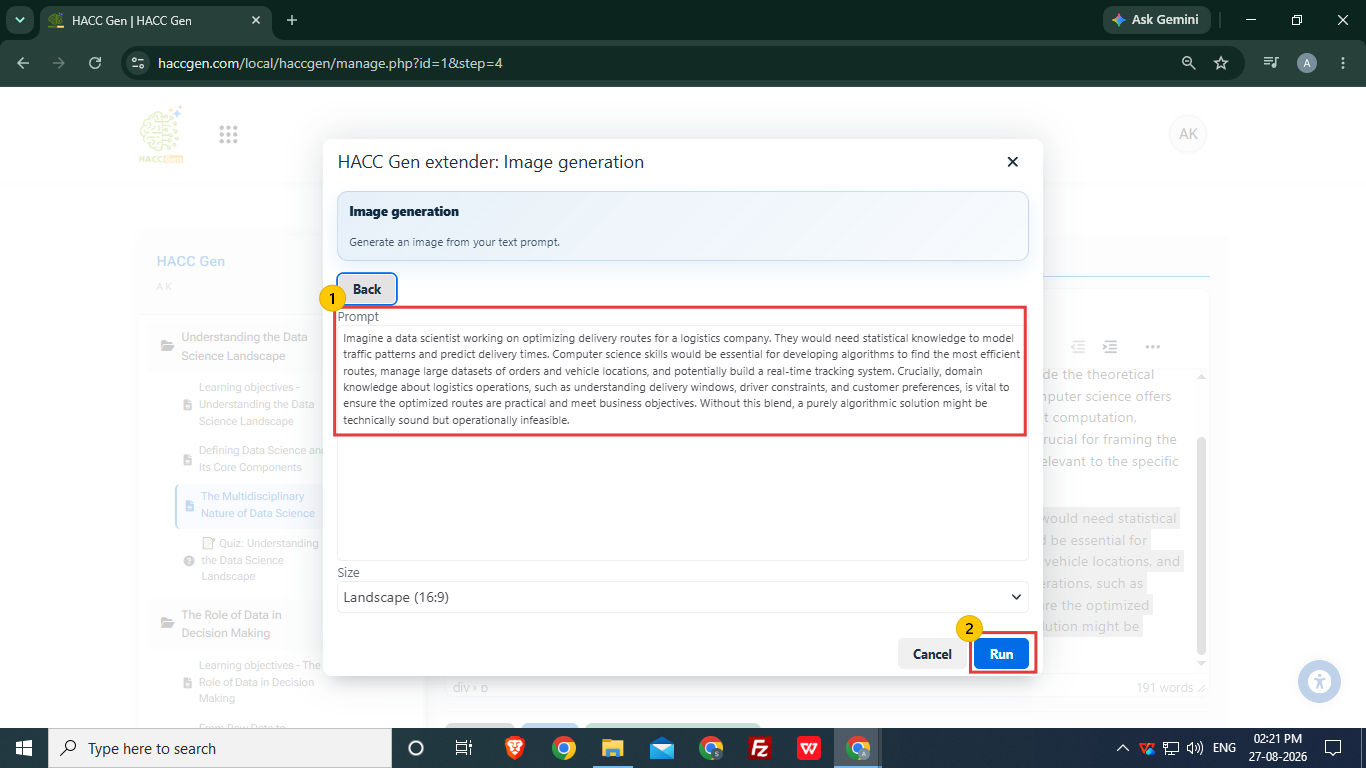
- Suppose user select Image Generation, then the selected text content will be taken as prompt for generating the image. The prompt can be edited as per requirements.
- To generate the image, click Run option.
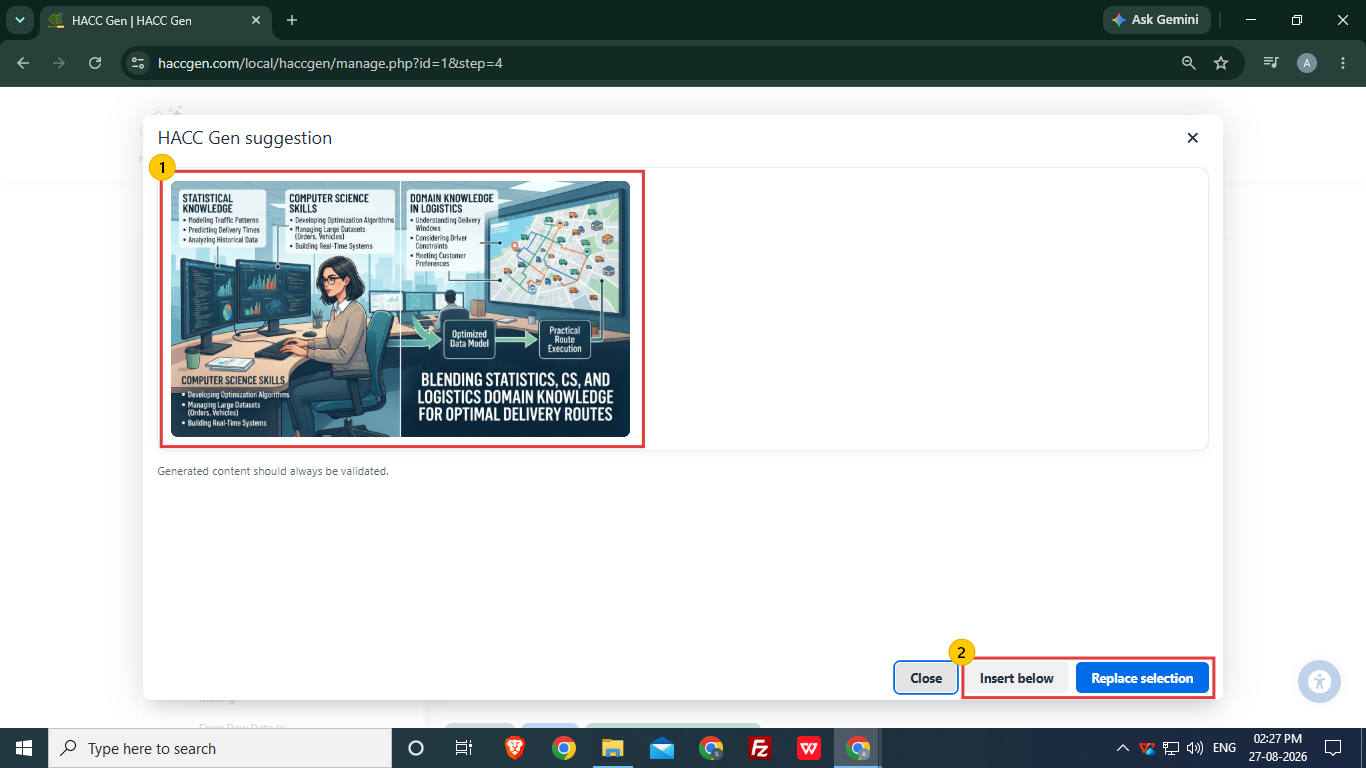
- The suggested image is generated using image generation tool for user to preview before using it.
- The user can insert the generated image below the selected content or they can replace the selected content with the generated image as per the requirements.
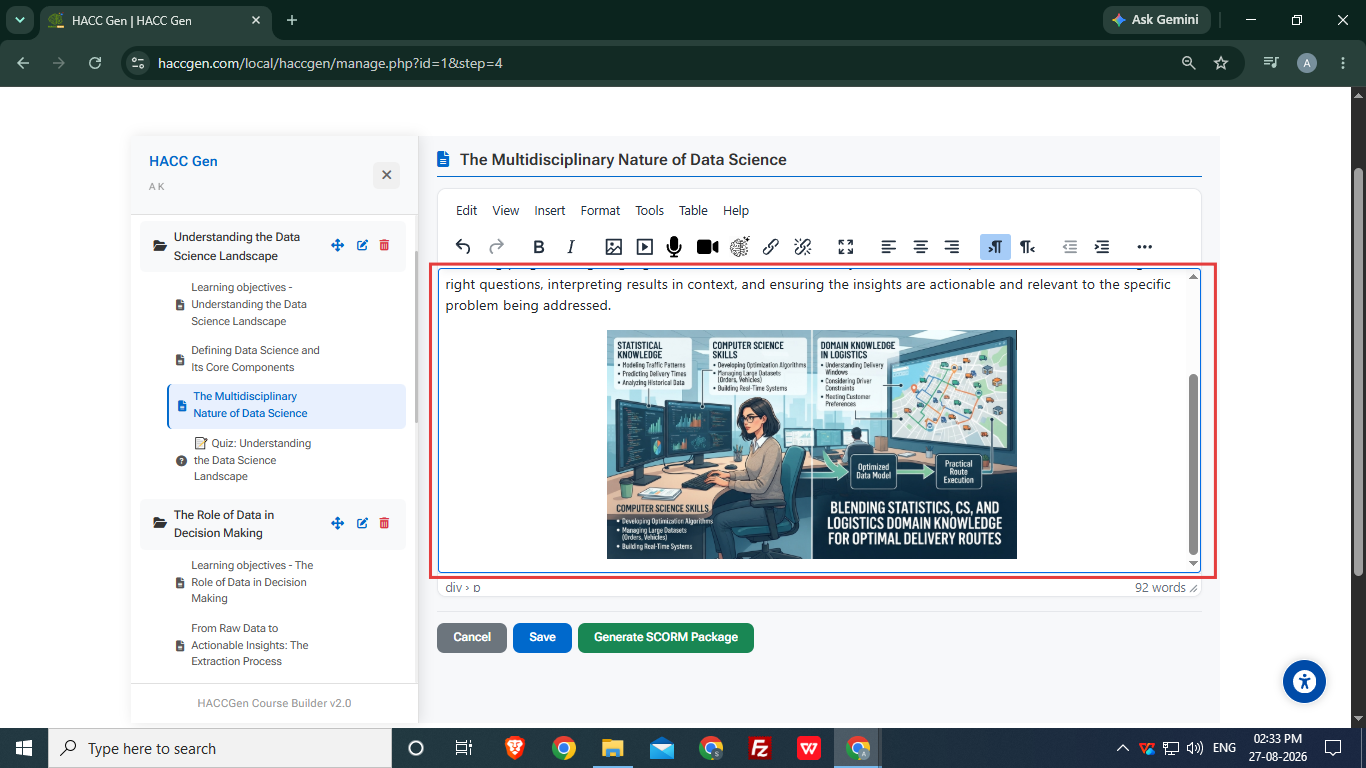
The selected content is replaced by the generated image.
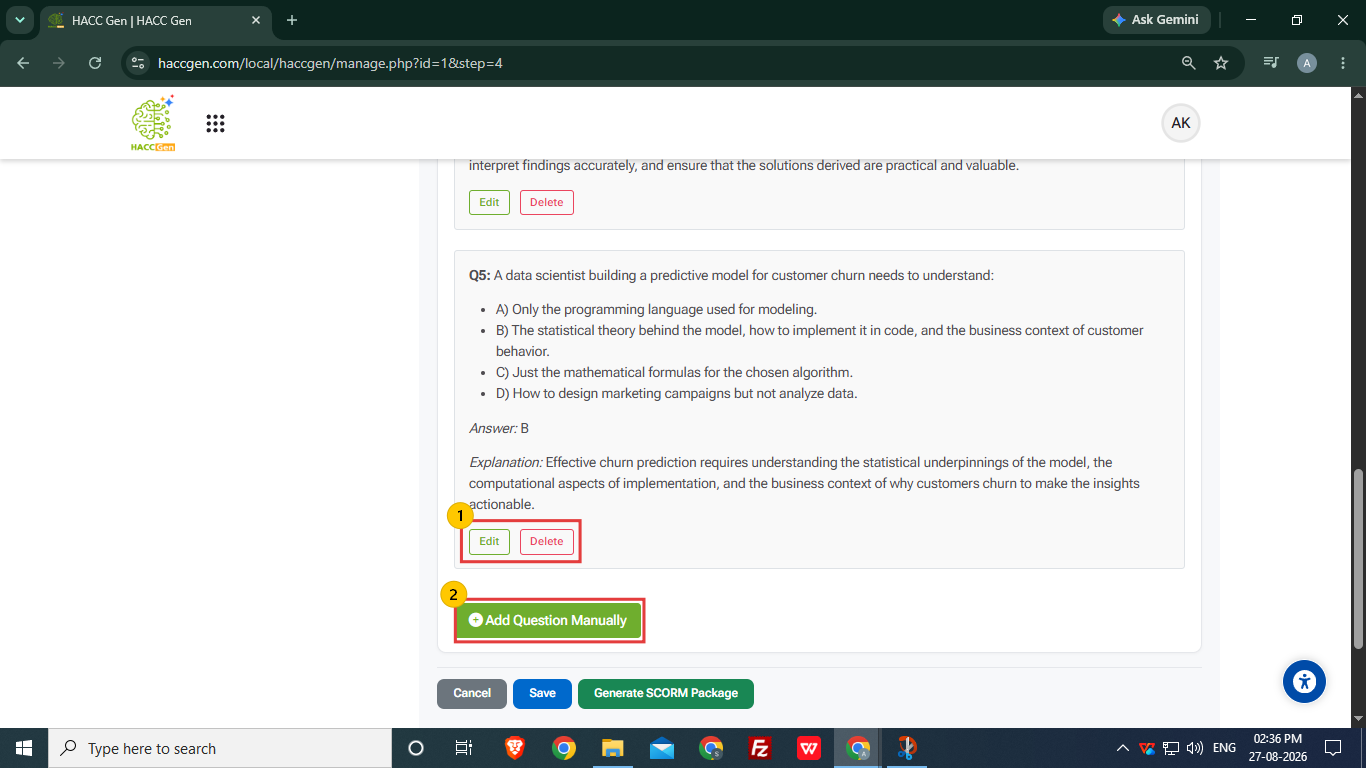
- User can preview and edit/remove a particular question inside the quiz.
- More questions can be added using Add Question Manually option.
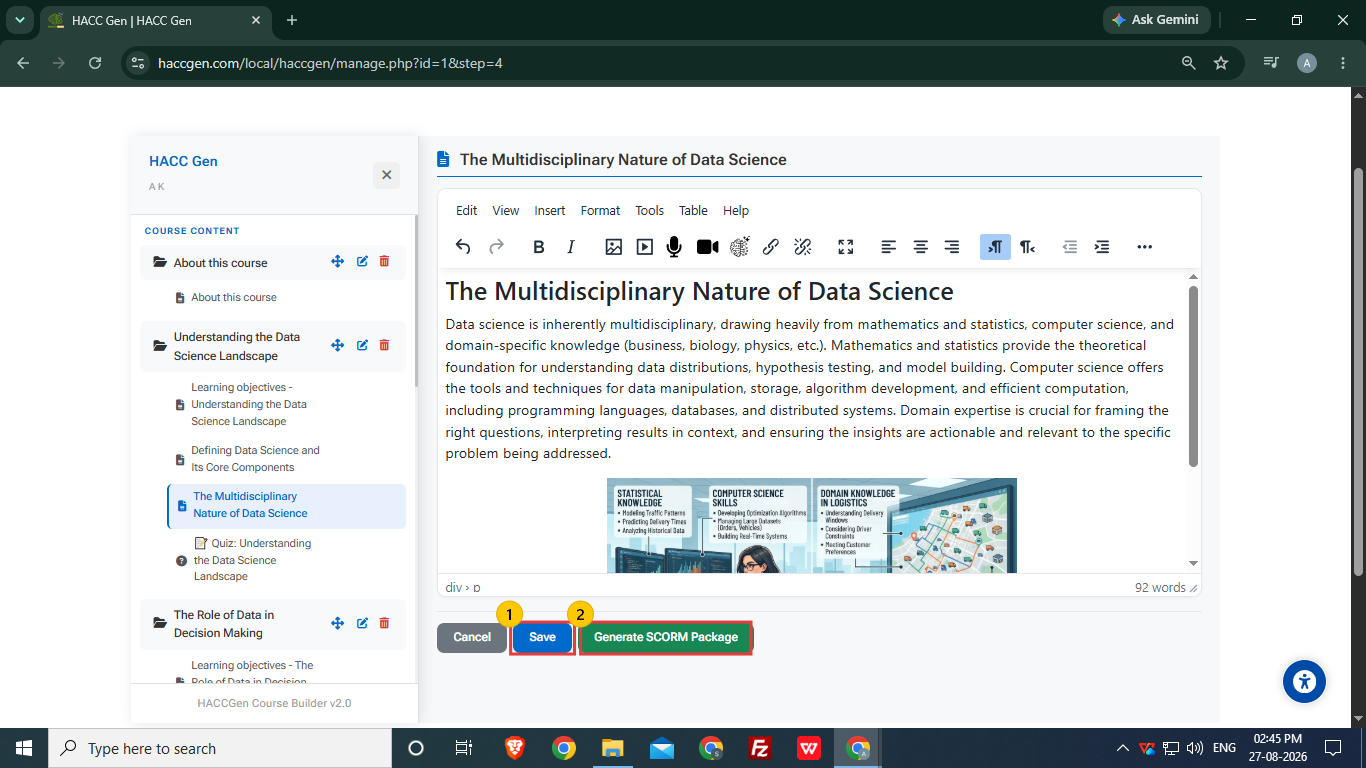
- After final changes, user can simply click on Save option to create the course structure and view it on the HACC Gen dashboard.
- The user can also generate the zip file for course structure using Generate SCORM Package option.
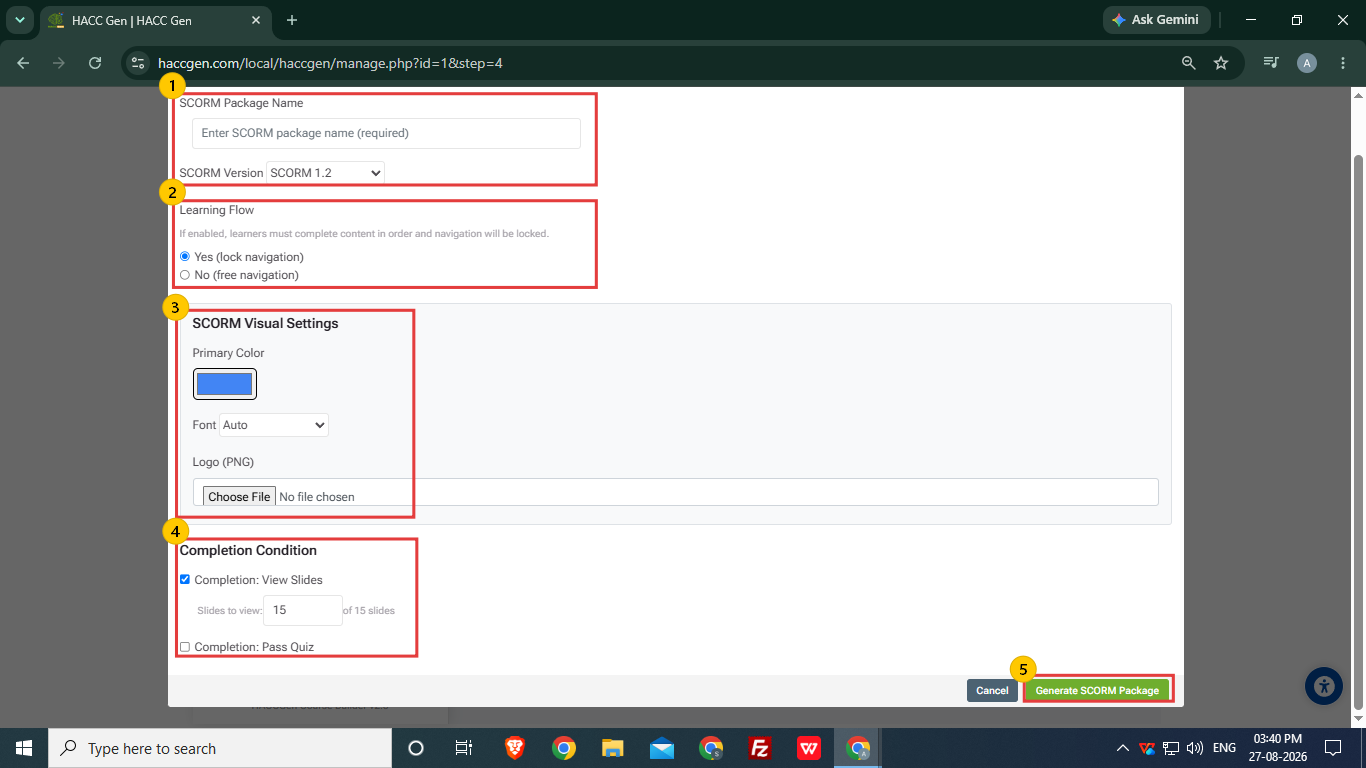
- The user is required to add the SCORM Package name and select the SCORM Version.
- The type of navigation can be selected in Learning Flow.
- The primary color, font and logo can be change in SCORM Visual Settings.
- The Completion Condition is set accordingly.
- After making all changes, click Generate SCORM Package.
A zip file will be downloaded to user's local system, which they can upload on their LMS or learning platforms.